
Install and activate your player
Start with the operating system on the device that will run the player. Keep the app installation, player licence and TREX account details together.

A first installation you can check one step at a time
Start with a small goal. Open the correct player on the intended screen and identify how it accepts an account. Someone who has never installed a television app often tries to solve the store, account and playback steps at once. Completing one step gives the next person a specific problem to answer.
If the publisher charges for an application, check who receives that charge. If support issues a trial or service account, confirm the length and supported screen separately. Test with a known station before moving to a complicated problem such as a regional football feed, a particular audio track or a programme across midnight.
The shortcut vanished after Home was rearranged
A television can lose its shortcut while the installed player still remembers its account. That distinction matters in a household where one person provided the login months ago and someone else now holds the remote. A player that still opens from Apps needs a navigation fix. An app absent from the store raises a model or market question. A player that opens to a named payment page raises a third issue with the publisher. Use the Samsung model and TV store together. An Android filename cannot identify a Tizen listing.
Open the setup stepsA television that can tune channels but cannot find the store
Basic TV mode is a setup choice on a television with Google TV built in. A working HDMI stick or terrestrial station therefore tells you little about whether the television itself is offering the full Google TV app experience. If the viewer always watches through a separate streamer, changing the built-in TV setup may solve no real problem. If the goal is an app installed directly on the set, completing the appropriate TV setup is relevant. Write down the Google TV hardware model as well as the app name. A store search carried out on a phone is a different test.
Open the setup stepsA player download and a licence on the same screen
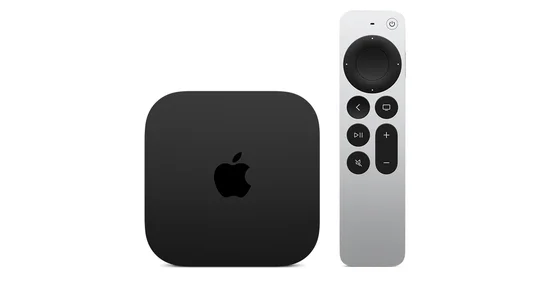
An app may show Get on its listing and subsequently offer a purchase or subscription inside the application. That price belongs to the particular publisher. It does not by itself establish that a separate provider’s television account has been activated. A store receipt identifies the transaction with that publisher. An empty provider playlist calls for a check of the source and account, while a publisher’s payment prompt belongs to the purchase or licence workflow. Compare the app in the actual iPad viewing mode and keep the tablet model distinct from the account that purchased it.
Open the setup stepsA working receiver with a second service to add
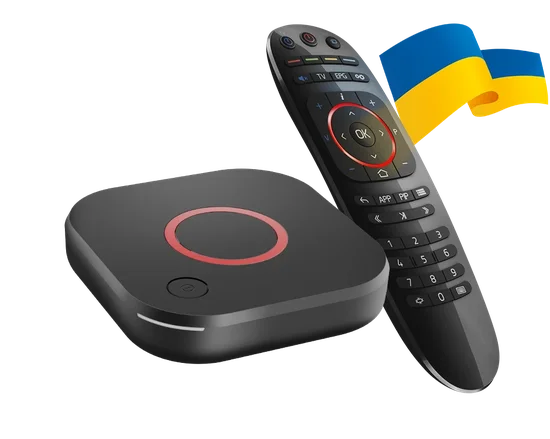
An existing MAG may already open a provisioned external portal automatically. Replacing that address to try a separate playlist can interrupt the service already in use. First identify whether the new service is a portal or a local playlist source. Reaching the embedded menu proves the receiver can display its local interface. Reaching an external provider’s menu is a second checkpoint. Seeing actual programmes after selecting a station is a third. Record the first point that did not work. Agree the embedded or external portal route with the operator before changing any known working address.
Open the setup stepsChoosing among Portal, XC and a playlist in MYTVOnline
An operator can issue a URL in several different forms. A portal managed against a device, an XC account with separate credentials, and a complete playlist URL are three distinct MYTVOnline workflows. A string that begins with a web address does not choose one for you. A connection name that appears in the menu shows it was saved. A loaded channel list shows the source returned data. Actual playback checks one particular channel. Give support the first stage that differs from expectations. Match the MYTVOnline edition and its source type before drawing conclusions from a blank channel menu.
Open the setup stepsTwo Mac download buttons for one player
VideoLAN distinguishes macOS downloads by processor family. A Mac purchased second hand can have an older Intel processor even when its screen and keyboard resemble a more recent Apple silicon model. About This Mac is the quickest starting point. If VLC opens and plays a local video, a later network-playlist error concerns a different stage. Check the network address supplied for the viewing account instead of fetching the same machine build repeatedly. Find a compatible desktop build, then verify the source and the Mac’s actual display and sound path independently.
Open the setup stepsSet up the screen you own
- Identify the device running the app. If you use an HDMI stick, write down its model as well as the TV brand.
- Choose the player from the appropriate store or confirm the publisher and build with support. Open it before asking for trial access.
- Match the details issued to the fields on screen. A portal, a playlist address and username/password fields are different formats.
- Play a familiar channel. Check the guide against the broadcaster’s local time and try the remote controls you normally use.
Two familiar player screens

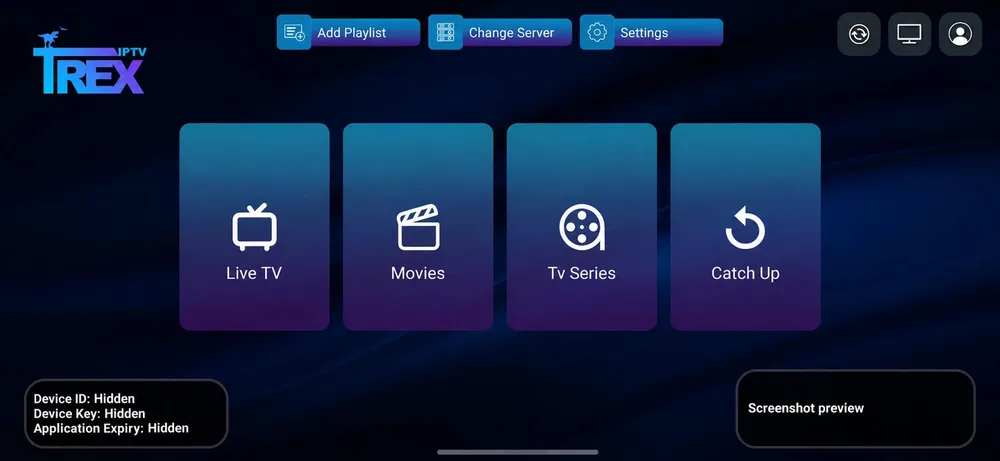
Choose the installation task





Android installer reference
Check the Android package and lookup code
Compare the published filename with the player support recommends for your device. Keep the store listing or confirmation available when you open the app.