Infomir MAG544 series with remote viewing setup
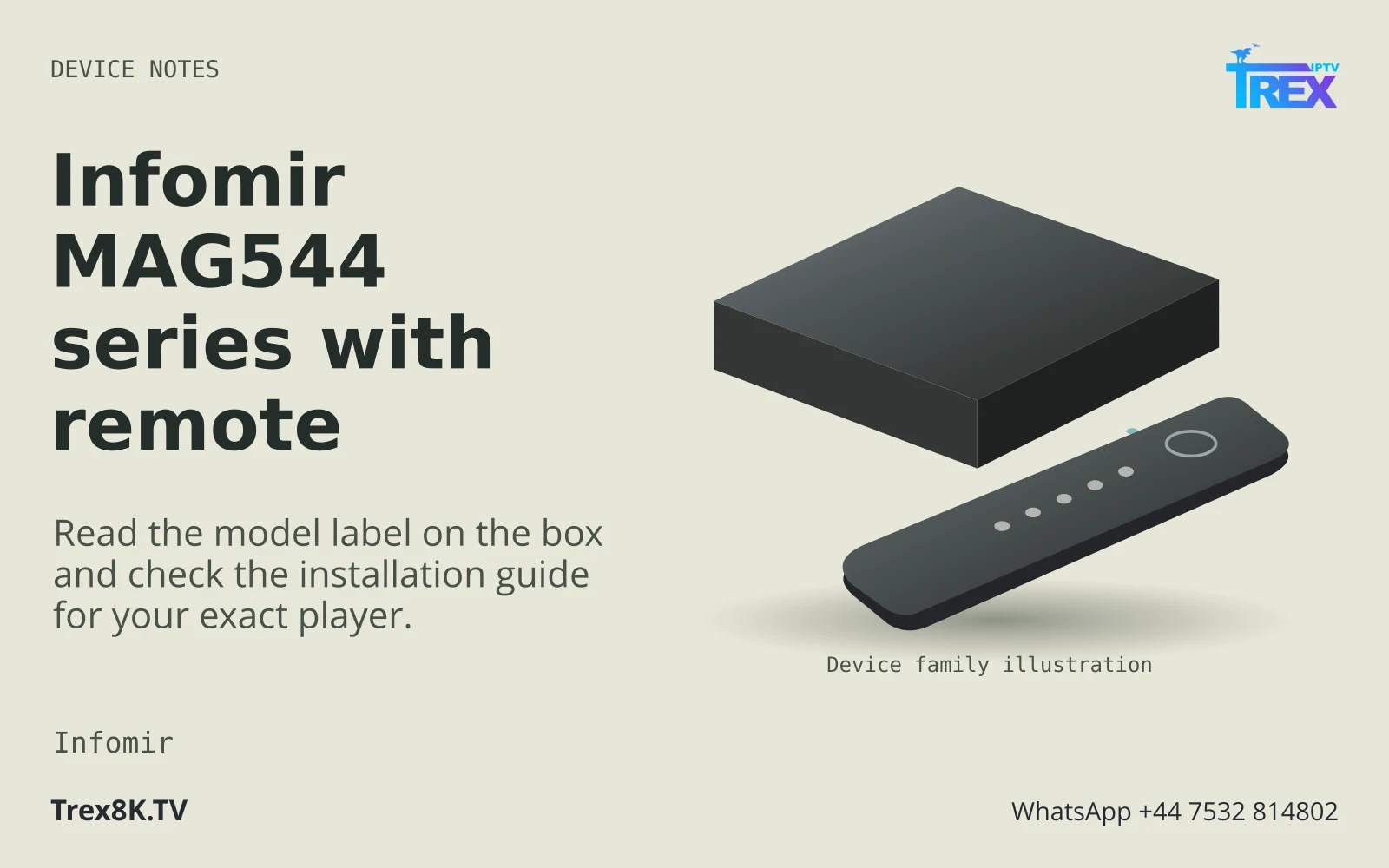
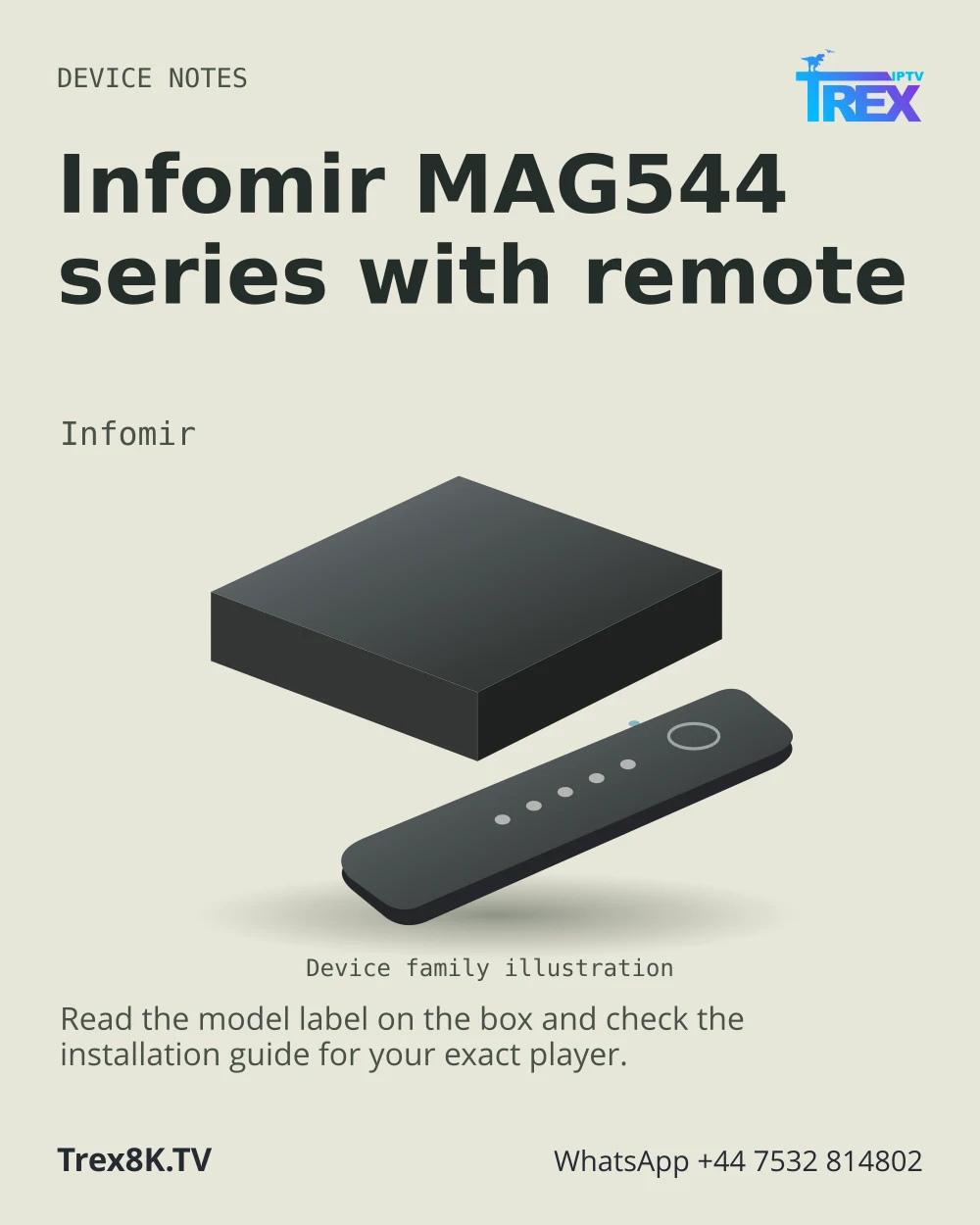
The photograph identifies Infomir MAG544 series with remote. Match the full product name and the device that runs the app before choosing an installer.
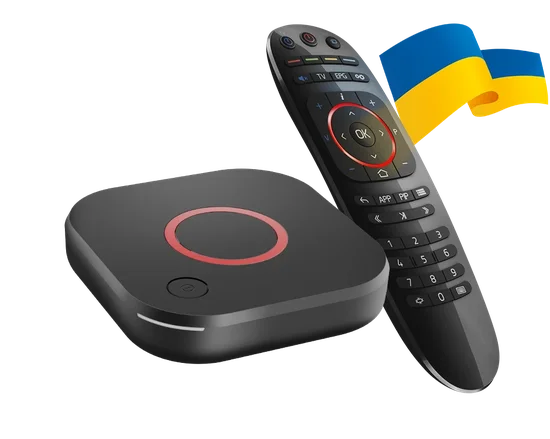
Recognize the hardware
Infomir’s MAG544 and MAG544w3 belong to its Linux set-top-box range and support HEVC. A guide teaching Android installation on a different MAG family does not identify the setup for these models. Formuler’s MYTVOnline connection choices can look familiar to MAG owners, but the applicable model and provisioned identifier must match the actual player.
To check the player on Infomir MAG544 series with remote, begin at the MAG model information and embedded portal settings. Compare the full MAG model and its software family with Infomir’s documentation. MAG544 and MAG544w3 are documented Linux receivers. Infomir also sells products with other operating systems, so the word MAG on a case is only the first part of the identification. Record the installed version while the screen is in front of you. A shop description can name the product family without telling you what software this particular unit runs.
Did the provider issue a playlist or provision a portal?
Start at the embedded portal, where the local menus are visible before an external service has connected. Look at the type of source the provider gave you. Keep the existing portal settings while confirming whether the new account uses a playlist or an external portal. With the receiver connected, open its own channel menu using the MAG remote. Check a known station and read the programme time. Return to the portal’s main page and reopen that station to see whether the profile survives navigation.
If network access appears present but the portal page is empty, record that stage and the full model suffix. If channels are already listed and only one will not open, name the programme. Those are different service checks on the same MAG. Keep the outcome with the device name, Infomir MAG544 series with remote. If a message appears, write down its wording and the action immediately before it. Someone reading that description can repeat the same step without guessing whether the failure happened at the store, in the player or during playback.
Find the correct installation route
For Infomir MAG544 series with remote, the first distribution check concerns the embedded Infomir portal or the operator’s provisioned portal. Use the embedded portal for functions it supports, such as loading an appropriate playlist. When the operator provisions an external portal, request the exact format and instructions for that account. A Linux MAG receiver will not become an Android device by accepting an Android filename. Before accepting a purchase, read the name of the organization charging for it. An application licence, an optional upgrade and a viewing account can have different issuers even when all three appear during one setup.
When Infomir MAG544 series with remote reaches the account screen, record the labels before asking for a trial. A playlist and an external portal can lead to different menus. If the operator asks which you received, describe the type of source privately. Keep an established working portal in place while checking whether the new source should be added or substituted. If the approved player opens with an existing profile, leave it available until you have identified the profile used for the test. A new installation can remove the most helpful point of comparison.
Compare the next device in the room
A useful comparison here is Formuler. Read the exact Formuler model and the version of MYTVOnline shown on the receiver. Formuler documents separate account paths for a device-linked portal, an XC account and a playlist source. The contents of the information issued to you determine which path fits. Open the installed MYTVOnline edition and its connections or content-source area as documented for that version. Before adding a source, identify whether the operator supplied account fields, an M3U address or a portal that will be associated with this device.
The observation to carry over from the comparison is specific to Infomir MAG544 series with remote. Agree the embedded or external portal route with the operator before changing any known working address. If the two devices behave differently, record the service you selected, the displayed local time and which player opened it. A new app, a new network and a new account in the same attempt leave several possible explanations.
When the first attempt stalls
An installation question about Infomir MAG544 series with remote can begin with the last screen that worked. If the receiver returns to a portal selection page, note the model and whether the old portal still opens. If the menus work but a specific service stays empty, collect the station and local time. Those observations point to different parts of the setup. Describe the change you made once, then try the same action again. Keep an existing working connection or account intact while checking the one that fails.
A concise message can include “Did the provider issue a playlist or provision a portal?” followed by the model, system version, player title and what you saw. Give the first result from the test above as well. Those details are enough to start a conversation without sending a password, a private playlist or a photograph of someone else’s account.
Identify the hardware
| Detail | What to match |
|---|---|
| Product pictured | Infomir MAG544 series with remote |
| Device family | MAG set-top box |
| Other catalogue labels | Infomir, MAG544 / MAG544w3 family, Infomir MAG |
Choose the player
Find the full model on the device label. Use the matching Infomir guide and confirm the private setup information with support before replacing any stored settings.
Open the MAG set-top box guideTelling MAG544 and MAG544w3 apart
The MAG544 series image identifies the family and remote. Infomir documents Linux on both versions. The w3 modification adds a built-in wireless connection option. If the receiver works in one room and another room has no Ethernet connection, check the suffix before looking for a Wi-Fi menu. A photograph of the front cannot settle which network hardware is inside.
When the same enquiry mentions a MAG555, treat that as another product. Infomir lists the MAG555 as a Google TV streaming player. A Google TV app recommendation for that device cannot establish an installation path for these Linux receivers. Start the MAG544 conversation with the complete label and ask the service issuer whether the provisioned connection uses a local playlist or an external portal.
Questions and answers
Did the provider issue a playlist or provision a portal? (Infomir MAG544 series with remote)
Start at the embedded portal, where the local menus are visible before an external service has connected. Look at the type of source the provider gave you. Keep the existing portal settings while confirming whether the new account uses a playlist or an external portal.
Illustrated guides