
MAG set-top box player setup
MAG is a family of set-top boxes with model-specific software. Ask whether this account is set up for the exact model and provisioning method.
Start with the unit you actually use
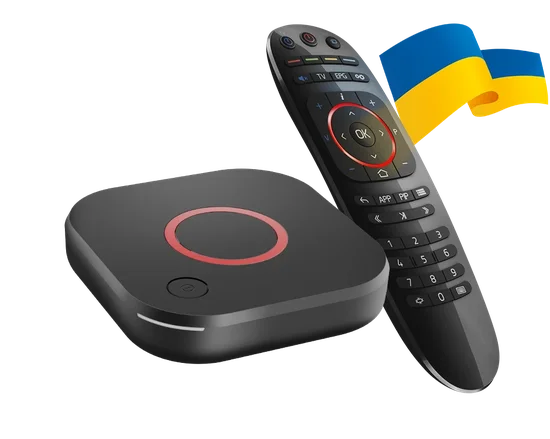
A home might also have a mobile Android app that resembles a MAG portal. The native receiver and an emulator can require different provisioning even when their menus look familiar. On Infomir MAG, start at the MAG model information and embedded portal settings. Compare the full MAG model and its software family with Infomir’s documentation. MAG544 and MAG544w3 are documented Linux receivers. Infomir also sells products with other operating systems, so the word MAG on a case is only the first part of the identification. If the television has a box plugged into HDMI, keep its remote beside the television remote until you can tell which Home button takes you to the intended launcher.
The guide uses Infomir MAG544 series with remote as one concrete point of reference. Infomir’s MAG544 and MAG544w3 belong to its Linux set-top-box range and support HEVC. A guide teaching Android installation on a different MAG family does not identify the setup for these models. Start at the embedded portal, where the local menus are visible before an external service has connected. Look at the type of source the provider gave you. Keep the existing portal settings while confirming whether the new account uses a playlist or an external portal. Compare the full product designation with the one on your own device. Similar appearance can be enough to find the right family while leaving the release year, operating-system generation or account requirements open.
Install and open an appropriate player
The usual distribution for this family is the embedded Infomir portal or the operator’s provisioned portal. Use the embedded portal for functions it supports, such as loading an appropriate playlist. When the operator provisions an external portal, request the exact format and instructions for that account. A Linux MAG receiver will not become an Android device by accepting an Android filename. Look for the opening screen before asking anyone to issue service details. A successful installation answers the hardware and distribution question. The correct form for a viewing account becomes clear once the player presents its own choices.
For a practical check on Infomir MAG, agree the embedded or external portal route with the operator before changing any known working address. With the receiver connected, open its own channel menu using the MAG remote. Check a known station and read the programme time. Return to the portal’s main page and reopen that station to see whether the profile survives navigation. Repeat the action with the remote, touchscreen or keyboard the household will normally use. Someone completing setup with a different controller may never see the problem that makes everyday viewing difficult.
Two nearby examples
Dune HD Premier 4K Pro illustrates a different decision. Dune describes the Premier 4K Pro as an Android TV media player. It also advertises its own media functions, so the source of playback matters when comparing a third-party IPTV app with media from a local library. Open the third-party player by its name on the television interface. Record what it asks for and use a single familiar service item. A separately opened local movie file is useful for checking picture and sound but uses a different input path. Match the visible symptom, screen and input device in that example with your own before carrying over its instructions.
Another useful comparison comes from MYTVOnline 3. The MYTVOnline 3 mark identifies an application and generation. Formuler documents portal, XC and M3U source choices. On a physical receiver, start by checking the edition that is installed and the format your provider has actually issued. If the image or platform mark resembles your own but its menus differ, record your exact model and system version. One manufacturer can sell machines with several operating systems, especially across markets and product generations.
From first launch to a useful support reply
Once the player opens on Infomir MAG, identify the fields it actually offers. A playlist and an external portal can lead to different menus. If the operator asks which you received, describe the type of source privately. Keep an established working portal in place while checking whether the new source should be added or substituted. A support request can describe the labels, the country and the product version while leaving values private. This gives the issuer enough context to choose the right registration or playlist format.
If the receiver returns to a portal selection page, note the model and whether the old portal still opens. If the menus work but a specific service stays empty, collect the station and local time. Those observations point to different parts of the setup. When you ask about Infomir MAG, give the last screen that worked and the precise action immediately after it. Mention a second screen only if you actually repeated the same test there. A working station on another device can distinguish a local app question from a question about one feed.
Find the player
Find the full model on the device label. Use the matching Infomir guide and confirm the private setup information with support before replacing any stored settings.
The model detail that matters
Keep the previous working configuration available privately. A public portal address or a generic Android APK is not a universal MAG setup.
After the player opens
Look for the login method shown on screen. If it asks for a username and password, request details for that exact player. If it asks for a device key or portal, ask support to confirm the method privately.
Request a device trialIdentified models
Named hardware and model guides
The MAG name covers several operating environments
Infomir lists its MAG544 and MAG544w3 as Linux receivers. It also lists MAG540 models, including a separate RDK-V range, and describes the MAG555 as a Google TV player. A serial prefix, a familiar-looking case or the word MAG in an Android app name is insufficient to choose between those routes. Read the complete model, any w3 or RDK designation, and the software shown on the receiver.
For the MAG544 pair, the manufacturer specifies a built-in wireless option for the w3 model. If an owner asks for help finding wireless settings on the other model, first identify how the receiver is connected. For a MAG555, use the Google TV installation guide and publisher listing. For a Linux receiver supplied with an operator portal, ask the operator what source it has provisioned. The contact and installation method depend on that distinction.
Questions and answers
How do I choose a player for MAG set-top box?
MAG is a family of set-top boxes with model-specific software. Ask whether this account is set up for the exact model and provisioning method. Find the full model on the device label. Use the matching Infomir guide and confirm the private setup information with support before replacing any stored settings.