Android TV player setup
Choose the television edition of a player when the publisher offers both phone and TV versions. Remote control focus matters on a ten-foot screen.
Start with the unit you actually use
The TV downstairs may be connected to a branded set-top box. Opening Apps on the television itself checks the television store. Pressing Home on the box checks the catalogue that will actually supply a player for that box. On Android TV, start at the device settings and the About or System information screen. An Android television app needs to work with a remote and from a sofa. The Play catalogue that appears for a handset can contain software the television cannot install. Use the brand, model and installed Android TV release to identify the target device. If the television has a box plugged into HDMI, keep its remote beside the television remote until you can tell which Home button takes you to the intended launcher.
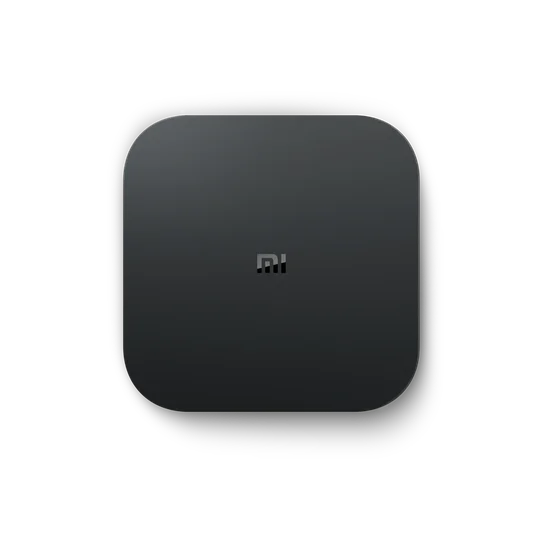
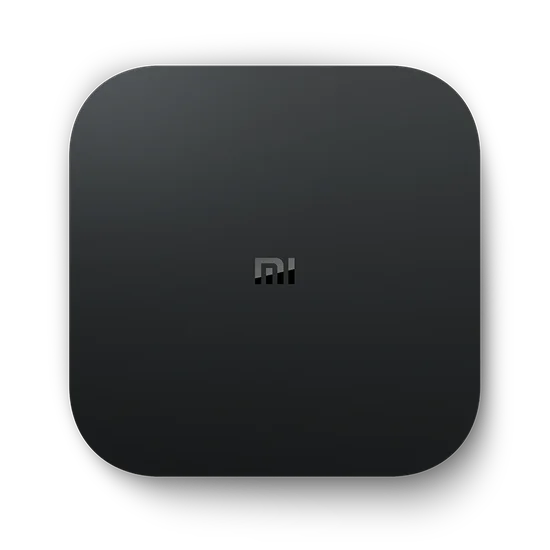
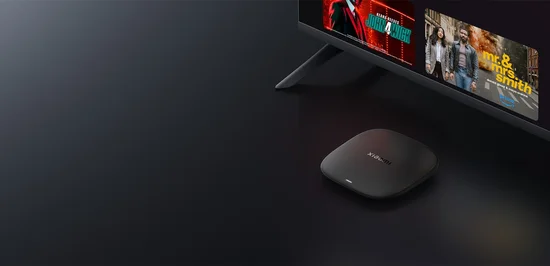
The guide uses Xiaomi Mi Box S as one concrete point of reference. The global specification for this original Mi Box S lists Android 8.1, 2 GB of RAM, 8 GB of storage and HDMI 2.0a. Xiaomi now also uses the TV Box S name for later generations. Read the generation on the underside or packaging and check the software page on the box. The original global specification is a starting point for identification. Compare the release installed today with the player’s current listing on the box. Compare the full product designation with the one on your own device. Similar appearance can be enough to find the right family while leaving the release year, operating-system generation or account requirements open.
Install and open an appropriate player
The usual distribution for this family is Google Play for Android TV. Open Apps on the Android TV home screen, launch Google Play where offered, and search the exact player. Check the TV in the device selector if looking at Google Play elsewhere. Read the listing on the television before confirming a purchase. Look for the opening screen before asking anyone to issue service details. A successful installation answers the hardware and distribution question. The correct form for a viewing account becomes clear once the player presents its own choices.
For a practical check on Android TV, use a compatible TV edition for remote navigation. A promising phone screenshot gives little evidence about the living-room layout. Move between two nonadjacent channel groups with the remote. Select a station, return, then reopen its group. This quick trip reveals an awkward phone-only interface before an activation or long subscription disguises the actual problem. Repeat the action with the remote, touchscreen or keyboard the household will normally use. Someone completing setup with a different controller may never see the problem that makes everyday viewing difficult.
Two nearby examples
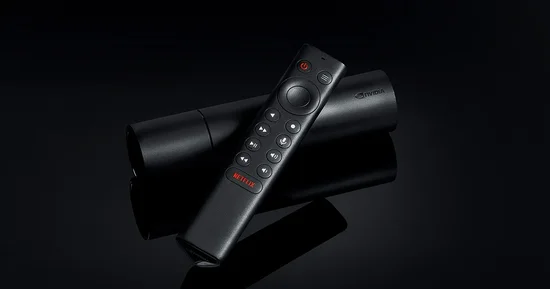
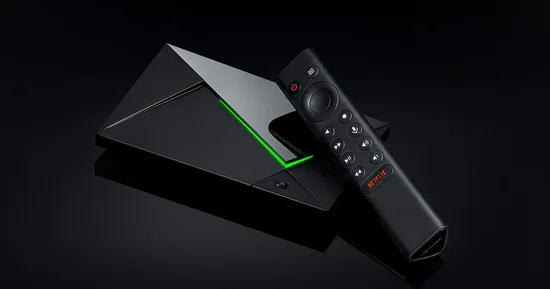
NVIDIA SHIELD TV with remote illustrates a different decision. NVIDIA documents this SHIELD TV with 8 GB of storage, microSD expansion, Gigabit Ethernet and HDMI. The related Pro model has its own casing, USB connections and different storage specification. First find one station or short clip the viewer recognizes. Run it on the existing connection and note the local time. Then use Ethernet on the same SHIELD, return to the same item and leave picture controls and the player edition unchanged. Match the visible symptom, screen and input device in that example with your own before carrying over its instructions.
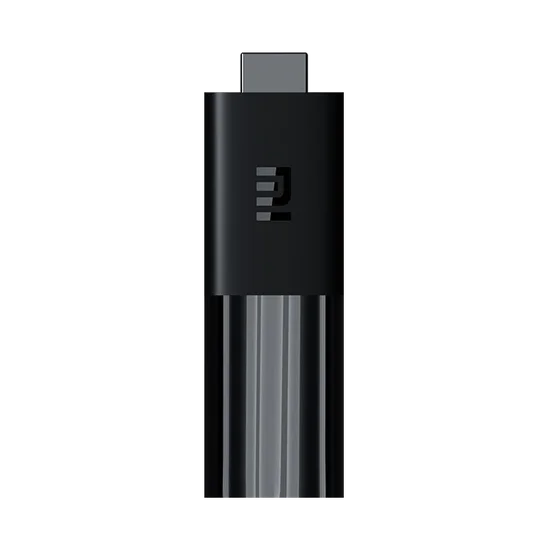
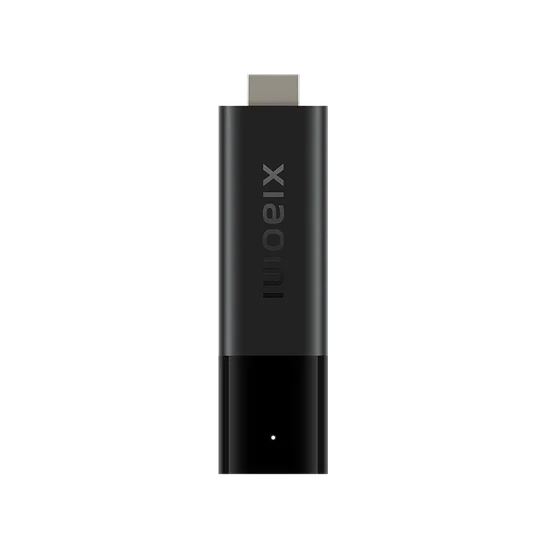
Another useful comparison comes from Xiaomi Mi TV Stick. Xiaomi lists the original Mi TV Stick at 1080p, with Android 9.0, 1 GB of RAM and 8 GB of storage. The separate TV Stick 4K has a different operating-system generation and output capability. Check the name printed on the stick and compare it with Xiaomi’s specification. If it is the original Mi TV Stick, use a known HD programme for the first test. A 4K panel can display the result without changing the stick’s documented output limit. If the image or platform mark resembles your own but its menus differ, record your exact model and system version. One manufacturer can sell machines with several operating systems, especially across markets and product generations.
From first launch to a useful support reply
Once the player opens on Android TV, identify the fields it actually offers. Once the app opens, look at the first form. A playlist link normally belongs in one address field. An account screen can ask for multiple values. Ask which one was issued before copying part of a playlist into an unrelated box. A support request can describe the labels, the country and the product version while leaving values private. This gives the issuer enough context to choose the right registration or playlist format.
When a result appears on Android mobile but the television cannot see it, keep both search results. Compare the target-device compatibility and publisher before trying another player. Reinstalling a working television store rarely tells you why one listing is missing. When you ask about Android TV, give the last screen that worked and the precise action immediately after it. Mention a second screen only if you actually repeated the same test there. A working station on another device can distinguish a local app question from a question about one feed.
Find the player
Search the device’s Play Store. Confirm that the app appears for the TV and that the listing matches the publisher. Open it once and identify the account fields.
The model detail that matters
A touch-only interface can be awkward from the sofa. Try moving between the guide, audio and settings controls with your regular remote.
After the player opens
Look for the login method shown on screen. If it asks for a username and password, request details for that exact player. If it asks for a device key or portal, ask support to confirm the method privately.
Request a device trialIdentified models
Named hardware and model guides
Questions and answers
How do I choose a player for Android TV?
Choose the television edition of a player when the publisher offers both phone and TV versions. Remote control focus matters on a ten-foot screen. Search the device’s Play Store. Confirm that the app appears for the TV and that the listing matches the publisher. Open it once and identify the account fields.
Illustrated guides