
Amazon Fire TV player setup
Start with the generation and model identifier. Amazon sells Fire TV hardware running different operating systems. The product name alone is insufficient for choosing an installer.
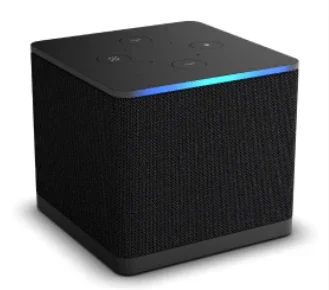
Start with the unit you actually use
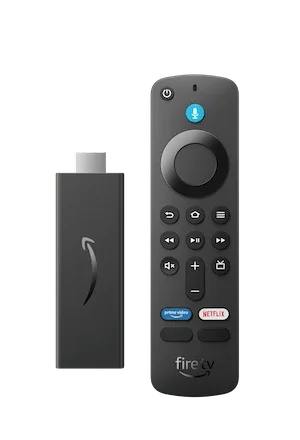
A family sometimes replaces the television while keeping the old Fire stick behind it. The panel model changes, but the installation decision still belongs to the device plugged into HDMI. On Fire OS on Fire TV, start at Settings, then My Fire TV or Device & Software, followed by About. Amazon distinguishes Fire TV devices by generation and build model. The code is particularly useful when the retail names are almost the same. The Android API level used by Fire OS helps a publisher decide whether a package can even be considered. If the television has a box plugged into HDMI, keep its remote beside the television remote until you can tell which Home button takes you to the intended launcher.
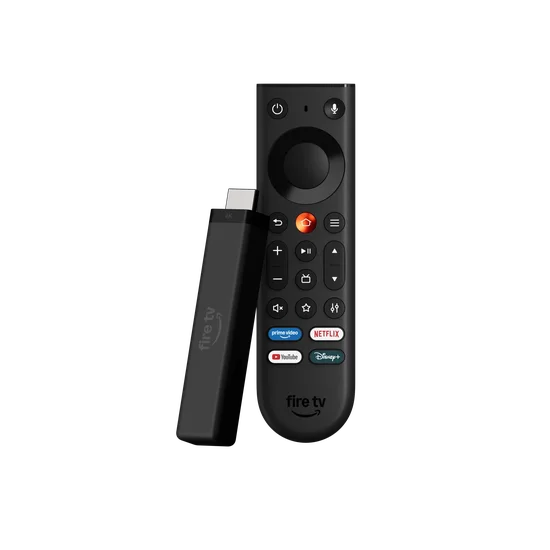
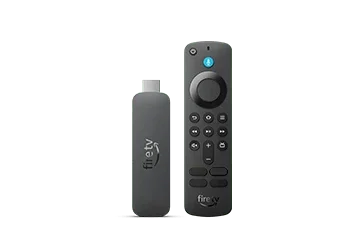
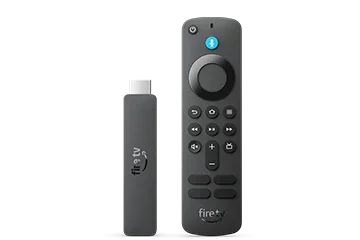
The guide uses Fire TV Stick 4K Plus (2025) as one concrete point of reference. The 2025 Plus is an Android-based Fire OS 8 product. The 2025 Select sits in the Vega OS family, despite the similar retail names. The manufacturer identifies the product by build AFTMA08C15 and lists Fire OS 8. These two details can settle a store question that the release year alone leaves open. Read Plus and Select as part of the name. They describe different platform families. A working app on a relative’s 2025 Select does not answer whether the same publisher offers this software for the Plus. Compare the full product designation with the one on your own device. Similar appearance can be enough to find the right family while leaving the release year, operating-system generation or account requirements open.
Install and open an appropriate player
The usual distribution for this family is Amazon Appstore on Fire TV. Start in the Amazon store on the actual Fire TV. Look up the publisher’s named player and check whether Amazon offers it for this device. A mobile Android package that passes a minimum version check may still require a different processor, input system or distribution method. Look for the opening screen before asking anyone to issue service details. A successful installation answers the hardware and distribution question. The correct form for a viewing account becomes clear once the player presents its own choices.
For a practical check on Fire OS on Fire TV, start with Amazon’s store evidence, then compare Android package metadata only when support confirms a Fire OS release. Test the remote on the channel guide, the audio choice and a return to the previous screen. If the player opens but a directional button will not select a row, note where focus disappears. Support can then distinguish a TV interface problem from failed credentials. Repeat the action with the remote, touchscreen or keyboard the household will normally use. Someone completing setup with a different controller may never see the problem that makes everyday viewing difficult.
Two nearby examples
Fire TV Stick 4K - 1st Gen (2018) illustrates a different decision. The 2018 4K Stick uses Android API level 25. The 2023 4K Stick uses a different operating-system generation and build model. The manufacturer identifies the product by build AFTMM and lists Fire OS 6. These two details can settle a store question that the release year alone leaves open. The first 4K Stick predates the second-generation 4K release by several years. Identify which one is connected before using a minimum-system claim from a more recent product listing. Match the visible symptom, screen and input device in that example with your own before carrying over its instructions.
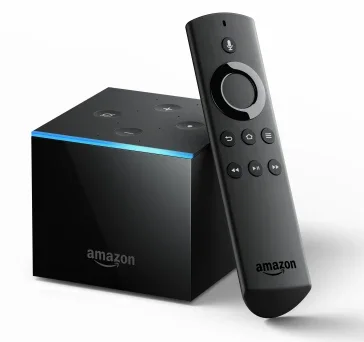
Another useful comparison comes from Fire TV Cube - 3rd Gen (2022). The 2022 Cube uses Fire OS 7 despite its later release date. Check the player’s Fire OS 7 requirements when selecting its store listing. The manufacturer identifies the product by build AFTGAZL and lists Fire OS 7. These two details can settle a store question that the release year alone leaves open. If the owner already has a wired connection in normal use, reproduce the symptom there first. Record which network was active at the time of the test. Changing network and player together makes a result harder to interpret. If the image or platform mark resembles your own but its menus differ, record your exact model and system version. One manufacturer can sell machines with several operating systems, especially across markets and product generations.
From first launch to a useful support reply
Once the player opens on Fire OS on Fire TV, identify the fields it actually offers. Opening the Fire TV launcher proves the stick or box has started. Opening a player brings you to its separate account screen. A Downloader lookup number may locate a file but cannot fill in a viewing account or provision a subscription. A support request can describe the labels, the country and the product version while leaving values private. This gives the issuer enough context to choose the right registration or playlist format.
A release that opens on a newer Fire TV need not have a compatible build for the older one. Record the actual Fire OS generation and the player version that launches. Leave the working stick untouched while you test the second device. When you ask about Fire OS on Fire TV, give the last screen that worked and the precise action immediately after it. Mention a second screen only if you actually repeated the same test there. A working station on another device can distinguish a local app question from a question about one feed.
Find the player
Look up your model in the Amazon specification table, then check its on-device store. For a Vega OS model, ask for an app specifically offered for that platform.
The model detail that matters
An Android APK is unsuitable for Vega OS. For a Fire OS model, ask support to match the build to the specific version before using a download reference.
After the player opens
Look for the login method shown on screen. If it asks for a username and password, request details for that exact player. If it asks for a device key or portal, ask support to confirm the method privately.
Request a device trialIdentified models
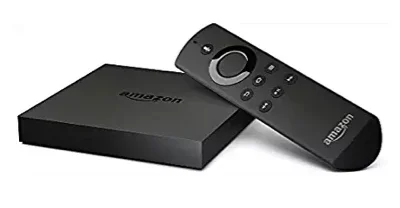
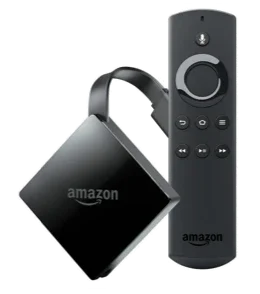
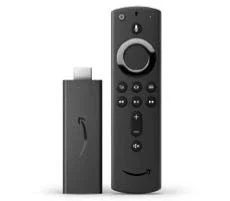
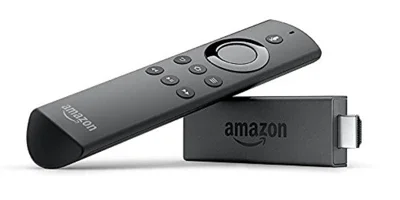
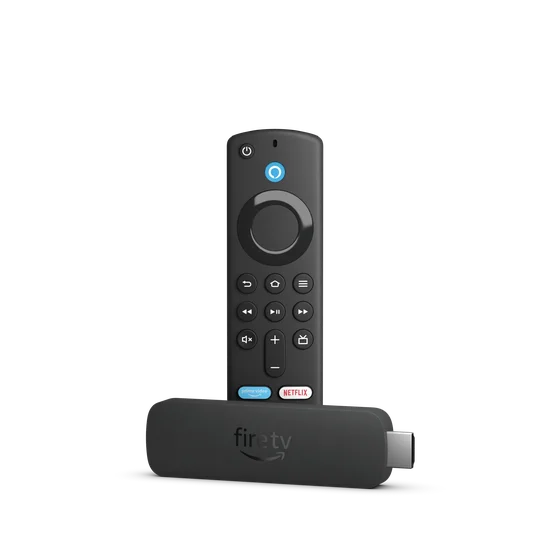
Named hardware and model guides
- Fire TV - 1st Gen (2014)
- Fire TV - 2nd Gen (2015)
- Fire TV - 3rd Gen (2017)
- Fire TV Cube - 1st Gen (2018)
- Fire TV Cube - 2nd Gen (2019)
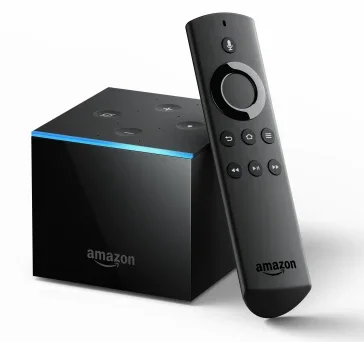
- Fire TV Cube - 3rd Gen (2022)
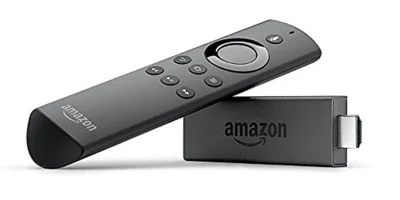
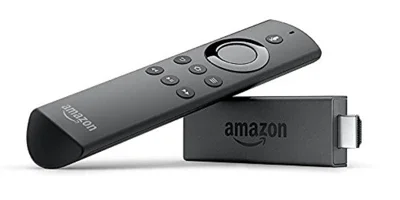
- Fire TV Stick - 1st Gen (2014)
- Fire TV Stick - 2nd Gen (2016-2019)
- Fire TV Stick - 3rd Gen (2020)
- Fire TV Stick - Basic Edition (2017)
- Fire TV Stick 4K - 1st Gen (2018)
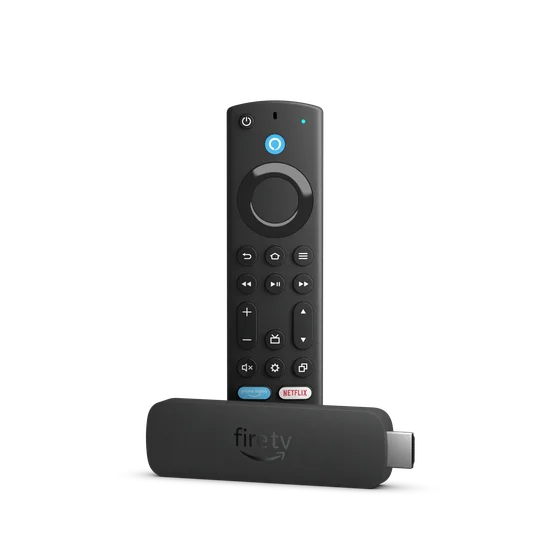
- Fire TV Stick 4K - 2nd Gen (2023) - 8 GB
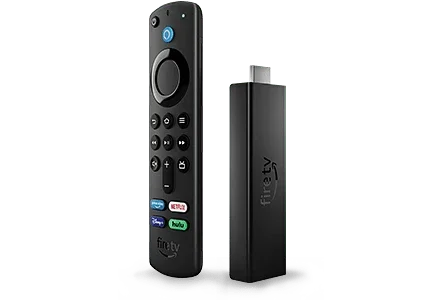
- Fire TV Stick 4K Max - 1st Gen (2021)
- Fire TV Stick 4K Max - 2nd Gen (2023) - 16 GB
- Fire TV Stick 4K Plus (2025)
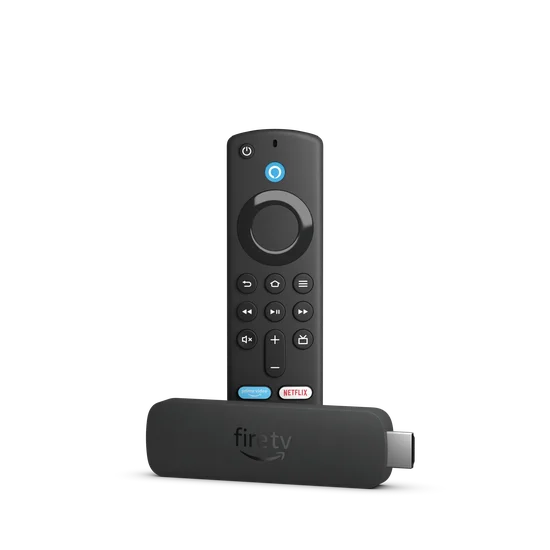
- Fire TV Stick HD Alexa Voice Remote (2024)
- Fire TV Stick Lite - 1st Gen (2020)
- Fire TV Stick 4K - 3rd Gen (2026)
- Fire TV Stick 4K Select (2025)
- Fire TV Stick HD (2026)
Questions and answers
How do I choose a player for Amazon Fire TV?
Start with the generation and model identifier. Amazon sells Fire TV hardware running different operating systems. The product name alone is insufficient for choosing an installer. Look up your model in the Amazon specification table, then check its on-device store. For a Vega OS model, ask for an app specifically offered for that platform.