Trex8K.TV
Visual guide

Player setup · visual guides 5

Open the artwork for a closer look. The linked titles lead to the subject guides.

Find parental controls on Google TV. An illustrated account method key accompanies the player guide. Open the player settings and see which restrictions it actually lets you apply.
Find parental controls on Google TVOpen the player settings and see which restrictions it actually lets you apply.Open portrait
Check buffering on Fire TV. An illustrated connection key accompanies the player guide. Play the same stream using your normal connection, then compare one controlled network change.
Check buffering on Fire TVPlay the same stream using your normal connection, then compare one controlled network change.Open portrait
Check a black screen on Fire TV Cube. An illustrated playback key accompanies the player guide. Compare the player menu and another known source before resetting account settings.
Check a black screen on Fire TV CubeCompare the player menu and another known source before resetting account settings.Open portrait
Verify the network link on Chromecast with Google TV. An illustrated connection key accompanies the player guide. Open the device network status and test a stream from the place where you normally watch.
Verify the network link on Chromecast with Google TVOpen the device network status and test a stream from the place where you normally watch.Open portrait
Verify the network link on Philips Android TV. An illustrated connection key accompanies the player guide. Open the device network status and test a stream from the place where you normally watch.
Verify the network link on Philips Android TVOpen the device network status and test a stream from the place where you normally watch.Open portrait
Verify the network link on TCL Google TV. An illustrated connection key accompanies the player guide. Open the device network status and test a stream from the place where you normally watch.
Verify the network link on TCL Google TVOpen the device network status and test a stream from the place where you normally watch.Open portrait
Find parental controls on Hisense Android TV. An illustrated account method key accompanies the player guide. Open the player settings and see which restrictions it actually lets you apply.
Find parental controls on Hisense Android TVOpen the player settings and see which restrictions it actually lets you apply.Open portrait
Confirm simultaneous use on iPhone. An illustrated playback key accompanies the player guide. Check the account allowance before testing the same service across two screens.
Confirm simultaneous use on iPhoneCheck the account allowance before testing the same service across two screens.Open portrait
Check subtitle tracks on iPad. An illustrated caption track key accompanies the player guide. Play the exact title and verify the caption language and readability on this screen.
Check subtitle tracks on iPadPlay the exact title and verify the caption language and readability on this screen.Open portrait
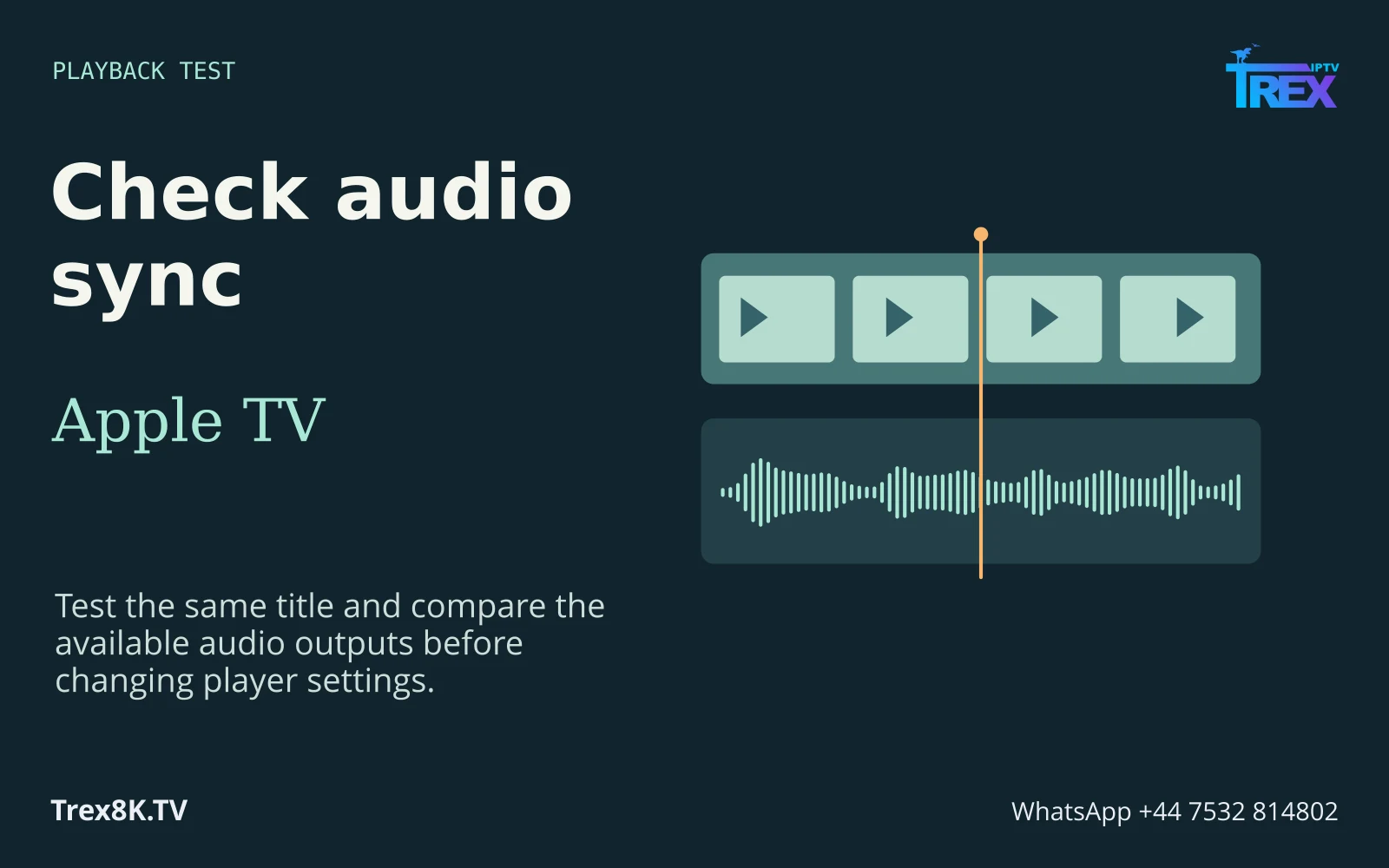
Check audio sync on Apple TV. Film frames and an audio waveform show the two signals to compare.
Check audio sync on Apple TVTest the same title and compare the available audio outputs before changing player settings.Open portrait
Verify the network link on Android projector. An illustrated connection key accompanies the player guide. Open the device network status and test a stream from the place where you normally watch.
Verify the network link on Android projectorOpen the device network status and test a stream from the place where you normally watch.Open portrait
Confirm simultaneous use on Android TV box. An illustrated playback key accompanies the player guide. Check the account allowance before testing the same service across two screens.
Confirm simultaneous use on Android TV boxCheck the account allowance before testing the same service across two screens.Open portrait
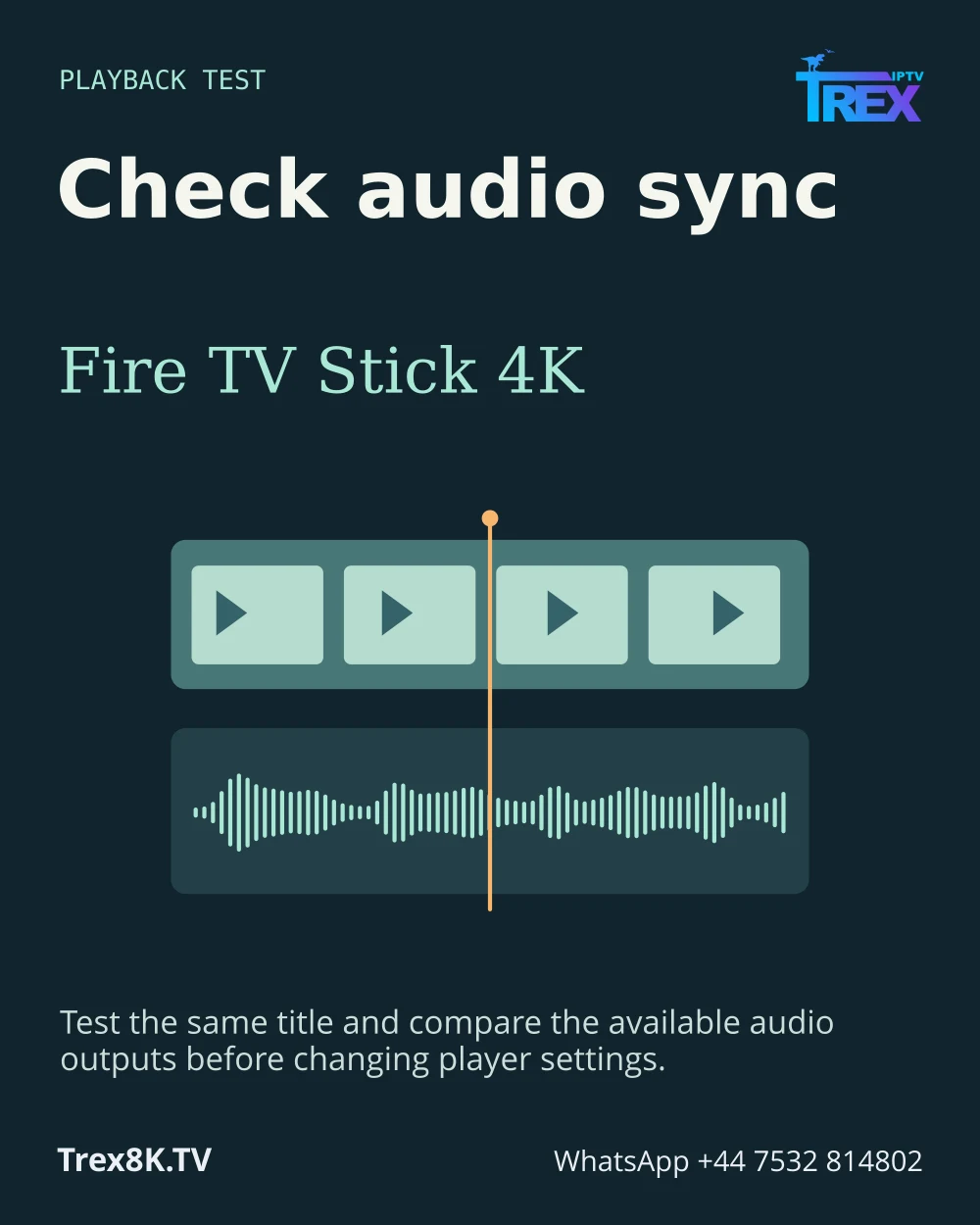
Check audio sync on Fire TV Stick 4K. Film frames and an audio waveform show the two signals to compare.
Check audio sync on Fire TV Stick 4KTest the same title and compare the available audio outputs before changing player settings.Open portrait
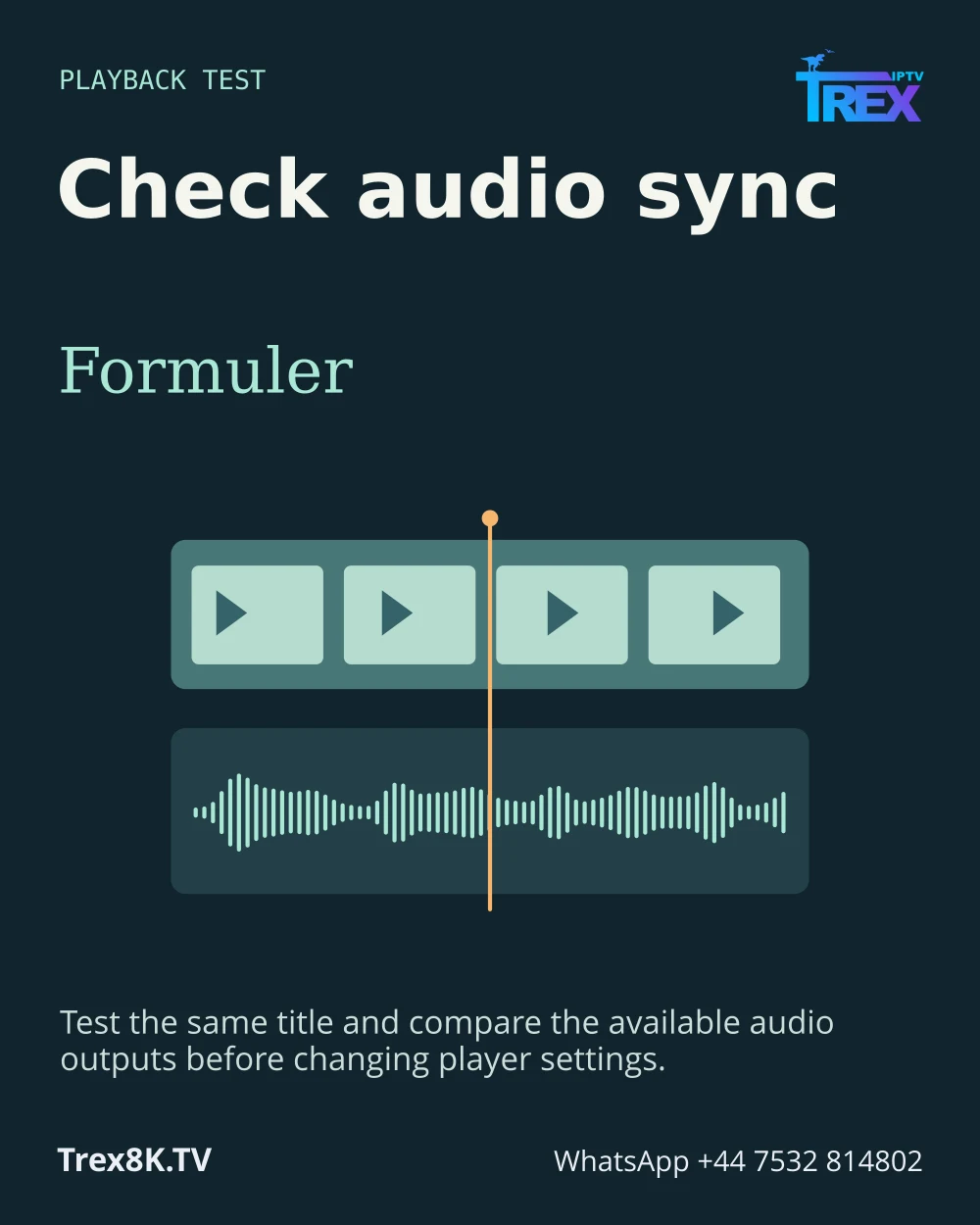
Check audio sync on Formuler. Film frames and an audio waveform show the two signals to compare.
Check audio sync on FormulerTest the same title and compare the available audio outputs before changing player settings.Open portrait
Check audio sync on LG webOS. Film frames and an audio waveform show the two signals to compare.
Check audio sync on LG webOSTest the same title and compare the available audio outputs before changing player settings.Open portrait
Check audio sync on Linux. Film frames and an audio waveform show the two signals to compare.
Check audio sync on LinuxTest the same title and compare the available audio outputs before changing player settings.Open portrait
Check audio sync on Mac. Film frames and an audio waveform show the two signals to compare.
Check audio sync on MacTest the same title and compare the available audio outputs before changing player settings.Open portrait
Check audio sync on MAG box. Film frames and an audio waveform show the two signals to compare.
Check audio sync on MAG boxTest the same title and compare the available audio outputs before changing player settings.Open portrait

Notes on the illustrations

Find parental controls on Google TV

The illustration titled “Find parental controls on Google TV” identifies Find parental controls on Google TV. The attached reference describes it this way: Open the player settings and see which restrictions it actually lets you apply.

Following the subject link takes you to Choose your TREX IPTV player. Its opening point is worth keeping with this image: Trex Pro and Trex IBO have different starting screens. A mark, poster or model photograph is most useful when its precise edition is written next to it.

Check a black screen on Fire TV Cube

The illustration titled “Check a black screen on Fire TV Cube” identifies Check a black screen on Fire TV Cube. The attached reference describes it this way: Compare the player menu and another known source before resetting account settings.
Following the subject link takes you to Choose your TREX IPTV player. Its opening point is worth keeping with this image: Trex Pro and Trex IBO have different starting screens. A mark, poster or model photograph is most useful when its precise edition is written next to it.

Verify the network link on TCL Google TV

The illustration titled “Verify the network link on TCL Google TV” identifies Verify the network link on TCL Google TV. The attached reference describes it this way: Open the device network status and test a stream from the place where you normally watch.

Following the subject link takes you to Choose your TREX IPTV player. Its opening point is worth keeping with this image: Trex Pro and Trex IBO have different starting screens. A mark, poster or model photograph is most useful when its precise edition is written next to it.

Confirm simultaneous use on iPhone

The illustration titled “Confirm simultaneous use on iPhone” identifies Confirm simultaneous use on iPhone. The attached reference describes it this way: Check the account allowance before testing the same service across two screens.

Following the subject link takes you to Choose your TREX IPTV player. Its opening point is worth keeping with this image: Trex Pro and Trex IBO have different starting screens. A mark, poster or model photograph is most useful when its precise edition is written next to it.

Verify the network link on Android projector

The illustration titled “Verify the network link on Android projector” identifies Verify the network link on Android projector. The attached reference describes it this way: Open the device network status and test a stream from the place where you normally watch.

Following the subject link takes you to Choose your TREX IPTV player. Its opening point is worth keeping with this image: Trex Pro and Trex IBO have different starting screens. A mark, poster or model photograph is most useful when its precise edition is written next to it.

Check audio sync on Firestick 4K

The illustration titled “Check audio sync on Firestick 4K” identifies Check audio sync on Firestick 4K. The attached reference describes it this way: Test the same title and compare the available audio outputs before changing player settings.

Following the subject link takes you to Choose your TREX IPTV player. Its opening point is worth keeping with this image: Trex Pro and Trex IBO have different starting screens. A mark, poster or model photograph is most useful when its precise edition is written next to it.

Check audio sync on Linux

The illustration titled “Check audio sync on Linux” identifies Check audio sync on Linux. The attached reference describes it this way: Test the same title and compare the available audio outputs before changing player settings.

Following the subject link takes you to Choose your TREX IPTV player. Its opening point is worth keeping with this image: Trex Pro and Trex IBO have different starting screens. A mark, poster or model photograph is most useful when its precise edition is written next to it.

Check audio sync on Mag Box

The illustration titled “Check audio sync on Mag Box” identifies Check audio sync on Mag Box. The attached reference describes it this way: Test the same title and compare the available audio outputs before changing player settings.

Following the subject link takes you to Choose your TREX IPTV player. Its opening point is worth keeping with this image: Trex Pro and Trex IBO have different starting screens. A mark, poster or model photograph is most useful when its precise edition is written next to it.

Use the entries above to move between Find parental controls on Google TV and Check audio sync on Mag Box. Each linked guide retains the full record, its source and any conditions that affect how to use it.

Listen for a repeatable delay

If lips and dialogue drift apart, use a short scene with a face clearly visible. Listen through the television speakers first when that option is available, then try the usual sound equipment. Note the player and output used during each pass. If one happens to be the Apple TV and the other a different device, include that change in the comparison before adjusting anything.

A second phone starting playback can introduce an account-allowance question into a sound test. Finish the first device comparison and close the unused session before asking about simultaneous use. Obtain the actual connection terms for the account. Two apps being installed does not by itself determine how many streams the order permits at once.

For a black screen on a Cube, first identify how far the player gets. A working guide with one unplayable station tells a different story from a blank HDMI input before the Cube home screen appears. Keep the remote that controls the Cube available and note which menus respond. Add an approximate timestamp and one comparison station while the result is still fresh.

There are several sync examples in this set because the output can matter as much as the player. A Mac connected to a monitor and an LG television connected to a soundbar each have more than one possible audio path. Start with the usual path, then try the simpler available output while leaving the programme alone. If the same late dialogue follows an external sound device, keep its model in the report as well.

A parental-controls check on Google TV and one on a Hisense Android television involve a separate issue. Find out which menu currently owns the restriction. Changing a profile setting may affect one viewer, while a device setting can affect other people using the same set. Before altering an existing family setup, record the agreement you are trying to achieve, such as requiring a code when opening a particular kind of programme.

To test the iPad subtitle example, use an episode with a track you have previously seen. Look for the precise language and any hearing-accessibility label, then test a scene with speech. An empty list on one title says very little about the whole application. Include the title and edition if the list is empty on that episode and populated on another.

If a delay affects spoken audio but leaves the subtitle timing unchanged, say so. Those two observations give support a much narrower scene to compare.