Trex8K.TV
Visual guide

Player setup · visual guides 3

Open the artwork for a closer look. The linked titles lead to the subject guides.

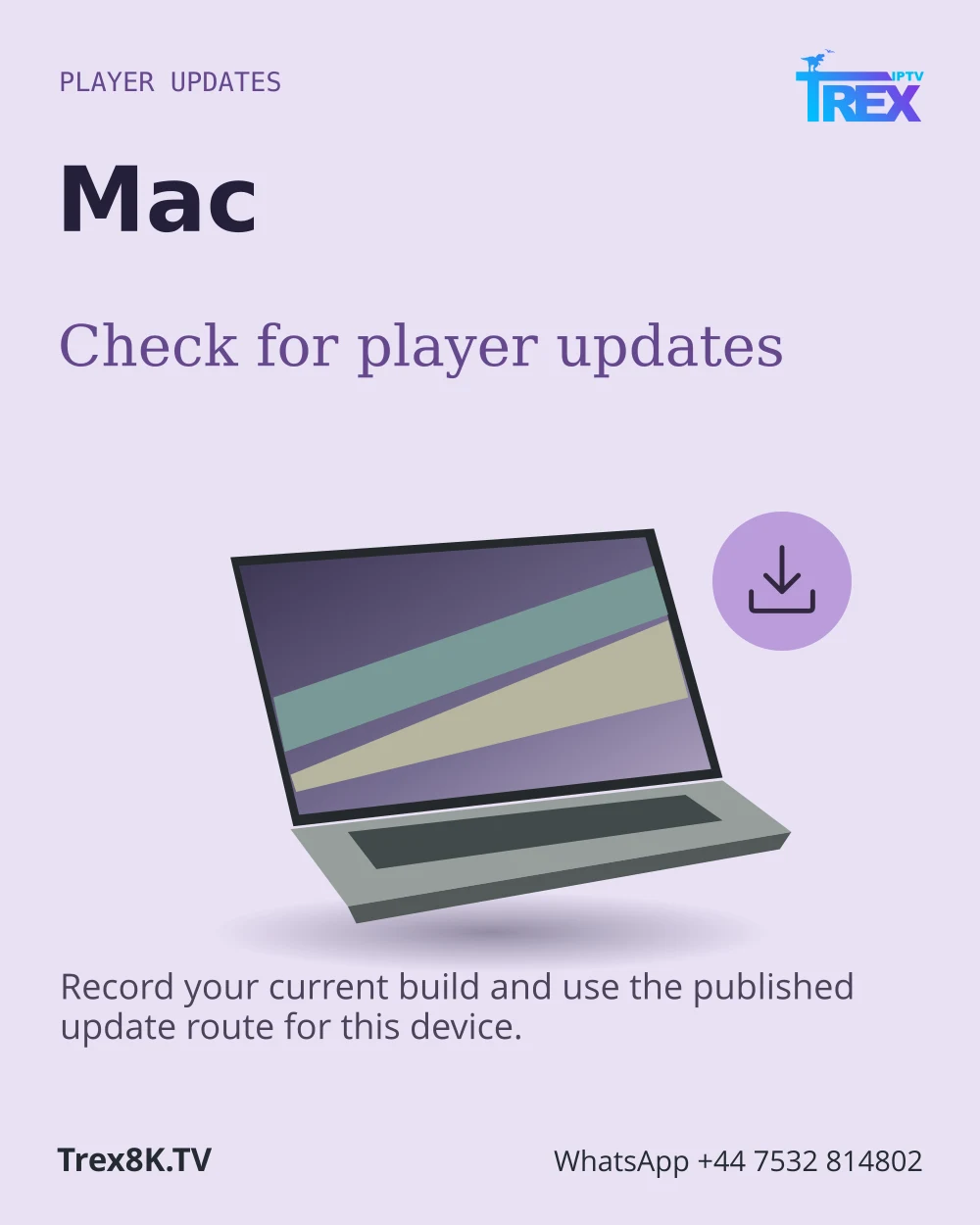
Check for player updates on Mac. An illustrated device family and download symbol identify the update task.
Check for player updates on MacRecord your current build and use the published update route for this device.Open portrait
Check for player updates on MAG box. An illustrated device family and download symbol identify the update task.
Check for player updates on MAG boxRecord your current build and use the published update route for this device.Open portrait
Check for player updates on Mi Box. An illustrated device family and download symbol identify the update task.
Check for player updates on Mi BoxRecord your current build and use the published update route for this device.Open portrait
Check for player updates on NVIDIA SHIELD. An illustrated device family and download symbol identify the update task.
Check for player updates on NVIDIA SHIELDRecord your current build and use the published update route for this device.Open portrait
Check for player updates on Samsung Tizen. An illustrated device family and download symbol identify the update task.
Check for player updates on Samsung TizenRecord your current build and use the published update route for this device.Open portrait
Check for player updates on Sony BRAVIA. An illustrated device family and download symbol identify the update task.
Check for player updates on Sony BRAVIARecord your current build and use the published update route for this device.Open portrait
Check for player updates on Windows. An illustrated device family and download symbol identify the update task.
Check for player updates on WindowsRecord your current build and use the published update route for this device.Open portrait
Load a playlist on Android phone. An illustrated player guide key accompanies the player guide. Open the compatible input in your player and keep the full playlist URL private.
Load a playlist on Android phoneOpen the compatible input in your player and keep the full playlist URL private.Open portrait
Check subtitle tracks on Android tablet. An illustrated caption track key accompanies the player guide. Play the exact title and verify the caption language and readability on this screen.
Check subtitle tracks on Android tabletPlay the exact title and verify the caption language and readability on this screen.Open portrait
Test the remote on Android TV. An illustrated navigation key accompanies the player guide. Try the directional keys, selection and return to live viewing in the player.
Test the remote on Android TVTry the directional keys, selection and return to live viewing in the player.Open portrait
Test the remote on Google TV. An illustrated navigation key accompanies the player guide. Try the directional keys, selection and return to live viewing in the player.
Test the remote on Google TVTry the directional keys, selection and return to live viewing in the player.Open portrait
Check for player updates on Fire TV. An illustrated device family and download symbol identify the update task.
Check for player updates on Fire TVRecord your current build and use the published update route for this device.Open portrait
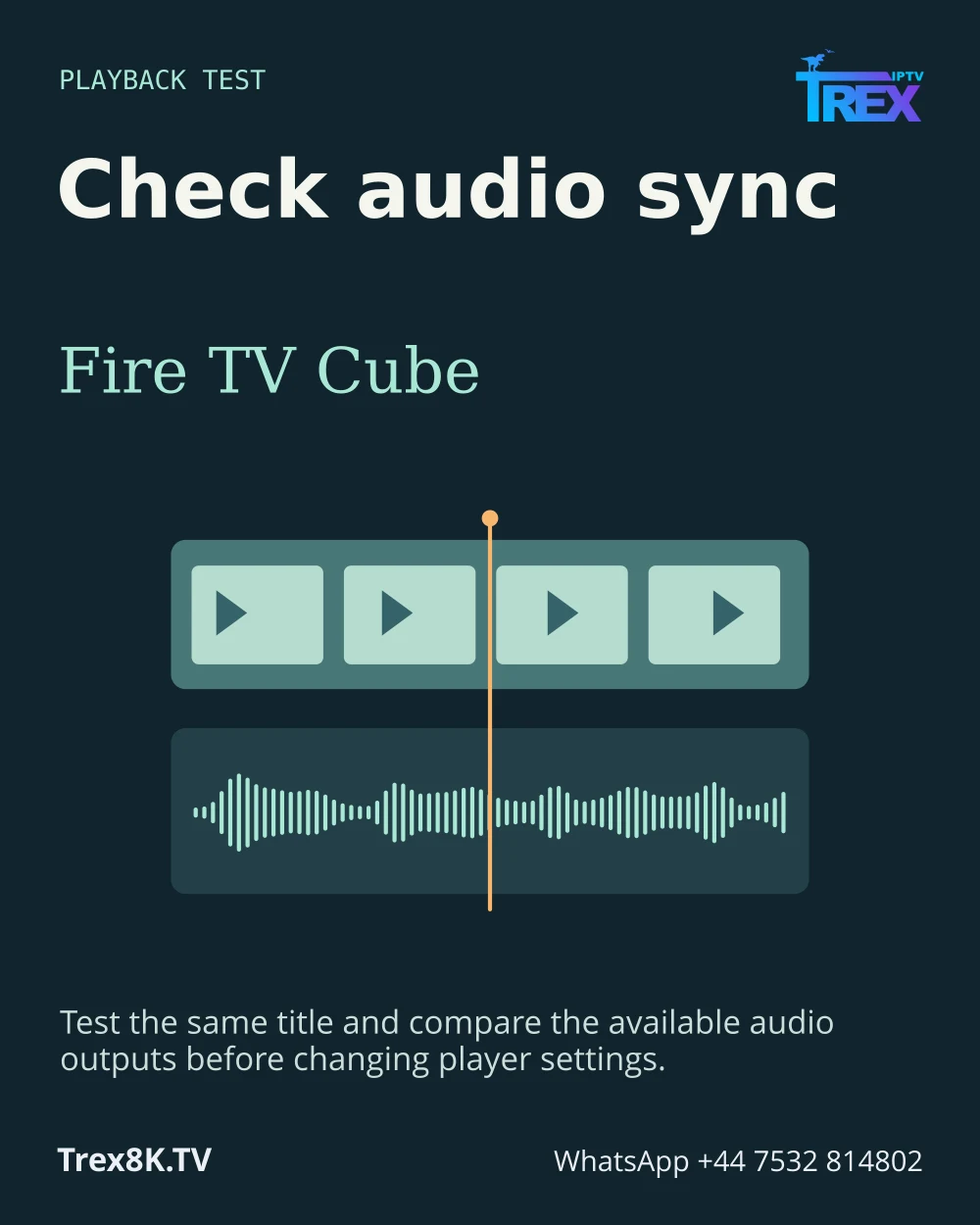
Check audio sync on Fire TV Cube. Film frames and an audio waveform show the two signals to compare.
Check audio sync on Fire TV CubeTest the same title and compare the available audio outputs before changing player settings.Open portrait
Test the remote on Chromecast with Google TV. An illustrated navigation key accompanies the player guide. Try the directional keys, selection and return to live viewing in the player.
Test the remote on Chromecast with Google TVTry the directional keys, selection and return to live viewing in the player.Open portrait
Switch audio language on Philips Android TV. Two illustrated layers identify the track list and language choice.
Switch audio language on Philips Android TVOpen the track list on a known programme and confirm the selected language plays.Open portrait
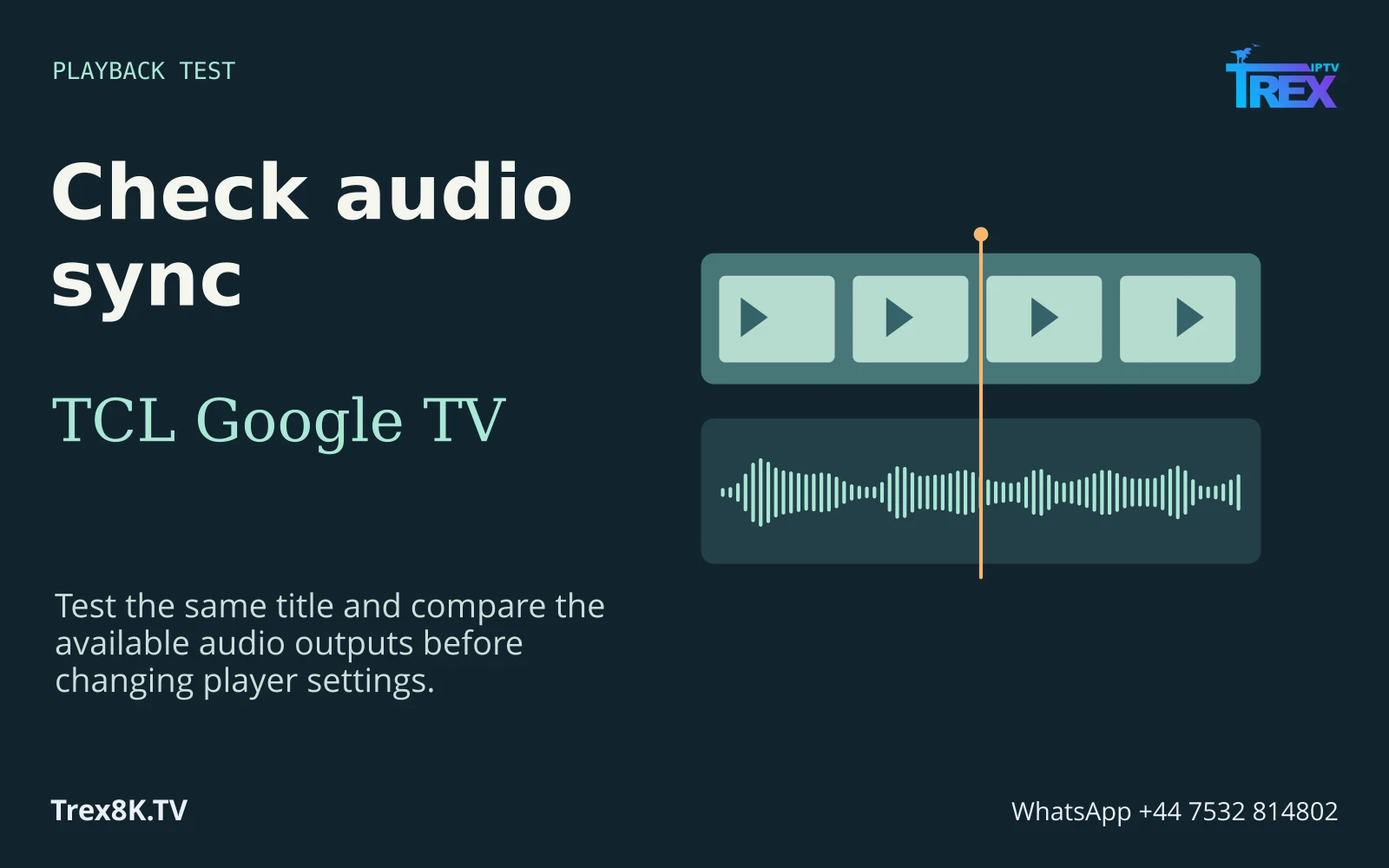
Check audio sync on TCL Google TV. Film frames and an audio waveform show the two signals to compare.
Check audio sync on TCL Google TVTest the same title and compare the available audio outputs before changing player settings.Open portrait
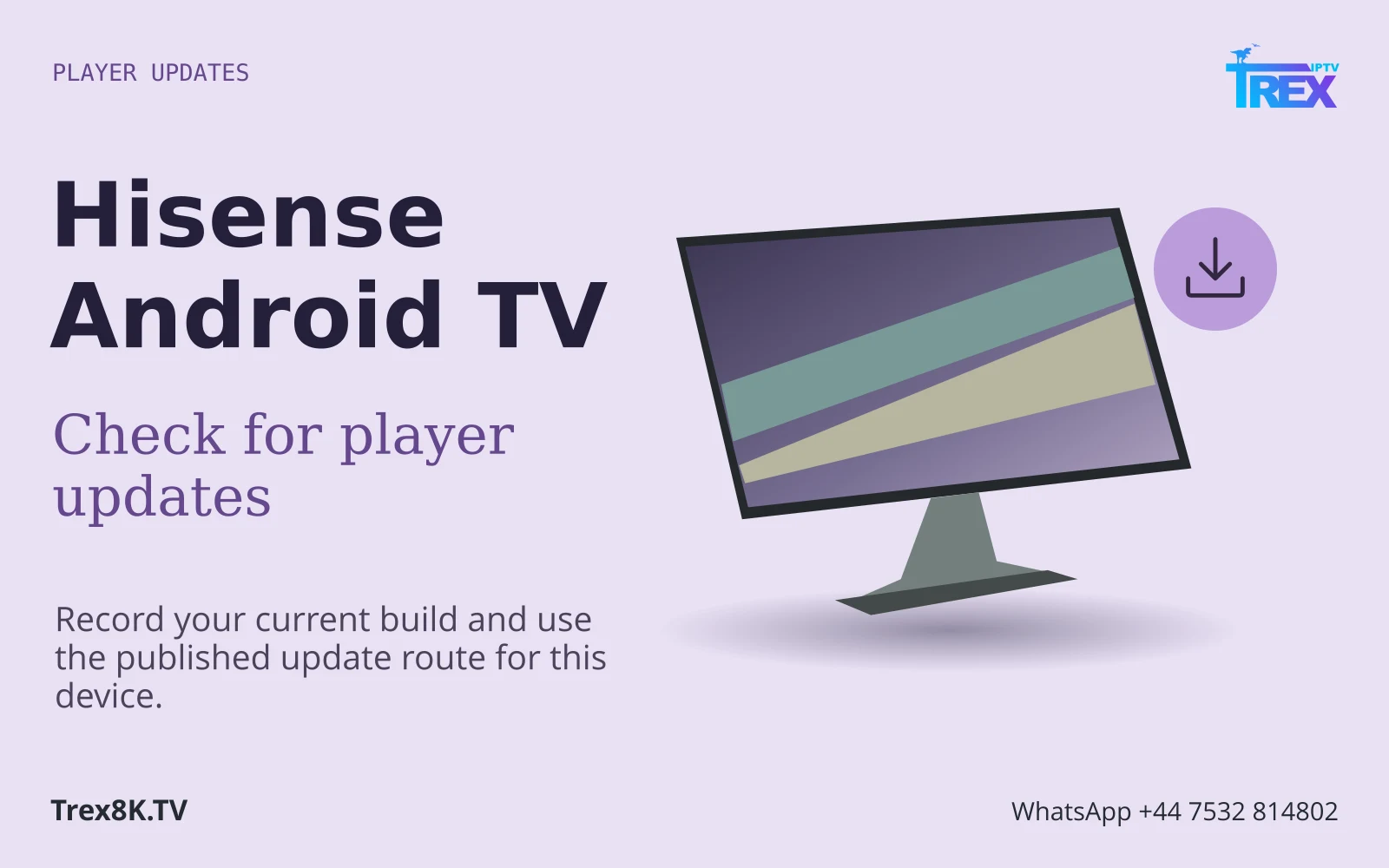
Check for player updates on Hisense Android TV. An illustrated device family and download symbol identify the update task.
Check for player updates on Hisense Android TVRecord your current build and use the published update route for this device.Open portrait
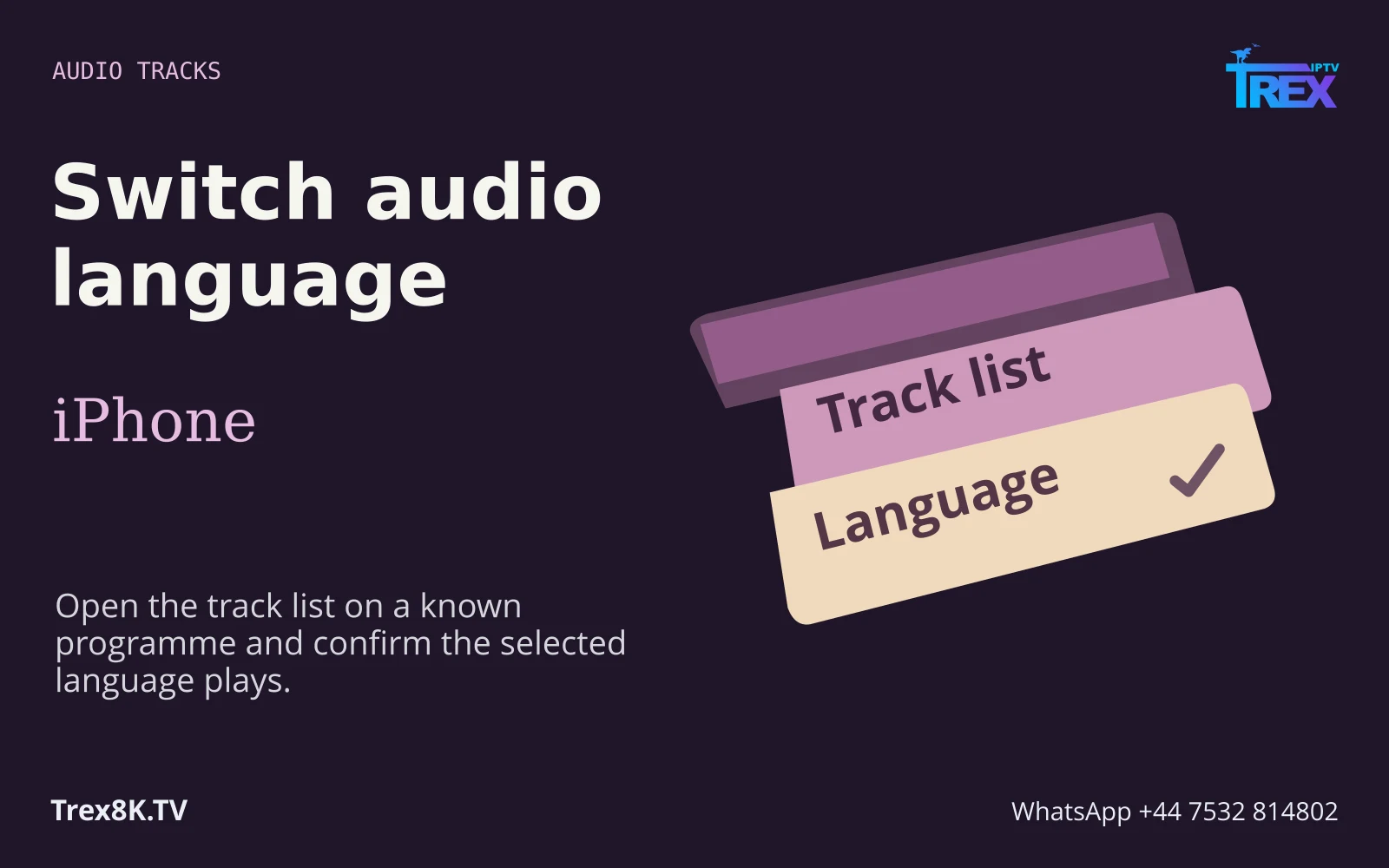
Switch audio language on iPhone. Two illustrated layers identify the track list and language choice.
Switch audio language on iPhoneOpen the track list on a known programme and confirm the selected language plays.Open portrait

Notes on the illustrations

Check for player updates on Mac

The illustration titled “Check for player updates on Mac” identifies Check for player updates on Mac. The attached reference describes it this way: Record your current build and use the published update route for this device.

Following the subject link takes you to Choose your TREX IPTV player. Its opening point is worth keeping with this image: Trex Pro and Trex IBO have different starting screens. A mark, poster or model photograph is most useful when its precise edition is written next to it.

Check for player updates on Mi Box

The illustration titled “Check for player updates on Mi Box” identifies Check for player updates on Mi Box. The attached reference describes it this way: Record your current build and use the published update route for this device.

Following the subject link takes you to Choose your TREX IPTV player. Its opening point is worth keeping with this image: Trex Pro and Trex IBO have different starting screens. A mark, poster or model photograph is most useful when its precise edition is written next to it.

Check for player updates on Sony BRAVIA

The illustration titled “Check for player updates on Sony BRAVIA” identifies Check for player updates on Sony BRAVIA. The attached reference describes it this way: Record your current build and use the published update route for this device.

Following the subject link takes you to Choose your TREX IPTV player. Its opening point is worth keeping with this image: Trex Pro and Trex IBO have different starting screens. A mark, poster or model photograph is most useful when its precise edition is written next to it.

Load a playlist on Android phone

The illustration titled “Load a playlist on Android phone” identifies Load a playlist on Android phone. The attached reference describes it this way: Open the compatible input in your player and keep the full playlist URL private.

Following the subject link takes you to Choose your TREX IPTV player. Its opening point is worth keeping with this image: Trex Pro and Trex IBO have different starting screens. A mark, poster or model photograph is most useful when its precise edition is written next to it.

Test the remote on Google TV

The illustration titled “Test the remote on Google TV” identifies Test the remote on Google TV. The attached reference describes it this way: Try the directional keys, selection and return to live viewing in the player.

Following the subject link takes you to Choose your TREX IPTV player. Its opening point is worth keeping with this image: Trex Pro and Trex IBO have different starting screens. A mark, poster or model photograph is most useful when its precise edition is written next to it.

Check audio sync on Fire TV Cube

The illustration titled “Check audio sync on Fire TV Cube” identifies Check audio sync on Fire TV Cube. The attached reference describes it this way: Test the same title and compare the available audio outputs before changing player settings.

Following the subject link takes you to Choose your TREX IPTV player. Its opening point is worth keeping with this image: Trex Pro and Trex IBO have different starting screens. A mark, poster or model photograph is most useful when its precise edition is written next to it.

Check audio sync on TCL Google TV

The illustration titled “Check audio sync on TCL Google TV” identifies Check audio sync on TCL Google TV. The attached reference describes it this way: Test the same title and compare the available audio outputs before changing player settings.

Following the subject link takes you to Choose your TREX IPTV player. Its opening point is worth keeping with this image: Trex Pro and Trex IBO have different starting screens. A mark, poster or model photograph is most useful when its precise edition is written next to it.

Switch audio language on iPhone

The illustration titled “Switch audio language on iPhone” identifies Switch audio language on iPhone. The attached reference describes it this way: Open the track list on a known programme and confirm the selected language plays.

Following the subject link takes you to Choose your TREX IPTV player. Its opening point is worth keeping with this image: Trex Pro and Trex IBO have different starting screens. A mark, poster or model photograph is most useful when its precise edition is written next to it.

Use the entries above to move between Check for player updates on Mac and Switch audio language on iPhone. Each linked guide retains the full record, its source and any conditions that affect how to use it.

Tell an update problem from an input problem

A new player build can change which control receives focus when the guide opens. If a viewer can click a button with a mouse on a Mac but cannot reach it using directional keys on a television, record that difference. Keep the precise player version and affected screen together. A comparison made on another device is valuable when it answers one specific question.
For a television-only navigation problem, leave the phone on the table. On Android TV or Google TV, use the normal directional pad to open the guide, choose a row and return. When a control appears to ignore the first press, check where the focus outline actually sits. The resulting observation identifies a specific button on a specific screen rather than attributing everything to an update.
A playlist-loading question on an Android phone needs a different kind of evidence. Say which player expects the playlist and whether the list or its programmes ever appear. Protect the complete address, since an apparently ordinary link can include private account details. A subtitle question can be tested without sharing any such address. Identify a single episode on the tablet and record the language choices its player makes available.

The Fire TV Cube audio example and the TCL Google TV audio example can be compared if the programme, output and scene are held constant. Choose the same short exchange of dialogue. Listen through the usual speakers, then through the television’s own speakers if that comparison is available. If the difference follows one output, explain which device and which output were selected. Changing the title and the sound route together leaves the cause uncertain.

The LG and Samsung brands do not determine which player is currently on a screen. A separate Fire TV or Android device can be connected to either panel. An app update on the stick and a television system update have different version numbers. In a message about an update, use the exact name of the component that changed. If its version is unavailable, describe the menu or store that offered the update.

On the Philips Android TV language example, switch tracks during a passage where the difference is audible. Read the track name, close the menu and confirm what you hear. On the iPhone, open the same edition and repeat. A language selected at the operating-system level is a preference the player may use when choosing among available tracks. The title’s actual audio menu shows the options delivered with that edition.