Apple iPhone family viewing setup
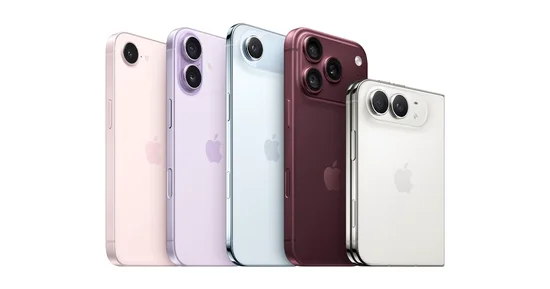
The photograph identifies Apple iPhone family. Match the full product name and the device that runs the app before choosing an installer.
Recognize the hardware
The iPhone product photograph identifies a family of phones. The App Store evaluates the installed iOS version and device compatibility instead of the model’s appearance. An iPhone purchase or screenshot can be a useful lead, but the tablet and TV editions have their own compatibility details.
To check the player on Apple iPhone family, begin at Settings, General, About and the installed iOS version. The iPhone model and iOS version can be checked together under About. An available app may require a later software release than the one on the phone. Take the installed version to the compatibility section of the actual App Store listing. Record the installed version while the screen is in front of you. A shop description can name the product family without telling you what software this particular unit runs.
Does the stream stay local, or is it being sent somewhere else?
Play a channel through the phone’s own speakers, using the network you intend to test. Read the player name and version before opening an AirPlay destination. A phone connected to headphones can also send sound away from the speaker you expect. Try playback through the phone’s own display and speakers first. Then test AirPlay separately on an intended receiver. Include whether the problem affects both paths, and whether the sender’s screen keeps showing the expected programme.
Repeat with the named receiver and watch whether the app continues to show playback controls. Record if the issue affects only transfer or local video too. Switching to mobile data at the same time would change two conditions and weaken the comparison. Keep the outcome with the device name, Apple iPhone family. If a message appears, write down its wording and the action immediately before it. Someone reading that description can repeat the same step without guessing whether the failure happened at the store, in the player or during playback.
Find the correct installation route
For Apple iPhone family, the first distribution check concerns the iPhone App Store. Use the App Store on the iPhone, look for the named developer and examine the purchase terms. A free download can include separate purchases. Open the app after installation and keep the listing handy if the name on the icon differs from the store title. Before accepting a purchase, read the name of the organization charging for it. An application licence, an optional upgrade and a viewing account can have different issuers even when all three appear during one setup.
When Apple iPhone family reaches the account screen, record the labels before asking for a trial. Face ID or an Apple Account prompt can authorize a store transaction. When the player subsequently asks for subscription details, the viewing service supplies those independently. Keep that distinction when one purchase succeeded but the channel list is still empty. If the approved player opens with an existing profile, leave it available until you have identified the profile used for the test. A new installation can remove the most helpful point of comparison.
Compare the next device in the room
A useful comparison here is Apple iPad Pro. The large-screen iPad Pro can be used on a desk or handheld. A keyboard, external monitor or split viewing arrangement adds input and display choices to a setup that begins on the tablet itself. Open the player at full size and use touch to select the guide. After that test, open the multitasking layout you normally use. Record the window size and orientation before deciding a missing guide button is a sign-in fault.
The observation to carry over from the comparison is specific to Apple iPhone family. Separate mobile playback from an AirPlay, Bluetooth or external-display problem by making one change at a time. If the two devices behave differently, record the service you selected, the displayed local time and which player opened it. A new app, a new network and a new account in the same attempt leave several possible explanations.
When the first attempt stalls
An installation question about Apple iPhone family can begin with the last screen that worked. If the player launches and works locally, capture the exact receiver name before changing the service account. A missing receiver or a second room’s Apple TV in the destination picker is a different problem from a new player login. Describe the change you made once, then try the same action again. Keep an existing working connection or account intact while checking the one that fails.
A concise message can include “Does the stream stay local, or is it being sent somewhere else?” followed by the model, system version, player title and what you saw. Give the first result from the test above as well. Those details are enough to start a conversation without sending a password, a private playlist or a photograph of someone else’s account.
Identify the hardware
| Detail | What to match |
|---|---|
| Product pictured | Apple iPhone family |
| Device family | iPhone and iPad |
| Other catalogue labels | Apple, iPhone family; generation unspecified, iPhone |
Choose the player
Search the exact player and publisher name. Read the purchase and compatibility information, then open the app and identify the login method.
Open the iPhone and iPad guideQuestions and answers
Does the stream stay local, or is it being sent somewhere else? (Apple iPhone family)
Play a channel through the phone’s own speakers, using the network you intend to test. Read the player name and version before opening an AirPlay destination. A phone connected to headphones can also send sound away from the speaker you expect.
Illustrated guides