
The shortest route from a new TV to a first picture
Look at what is plugged into the HDMI port before you open an app store. The television and the box connected to it can run completely different software.
Find the device that will do the playing
A new television sometimes arrives halfway through an existing setup. The old streaming stick still holds the player, the soundbar still controls the volume and somebody has already put the spare remote in a drawer. Pick up the remote you expect to use every evening. Press Home. Which device supplied the screen you are looking at?
Follow the HDMI lead if the answer is unclear. A small box behind a Samsung set might open Apple’s Home screen. A Fire TV Stick plugged into an LG can have its own settings, apps and accounts. Some remotes can operate more than one piece of equipment, so look at the name in the on-screen settings. The logo on the remote is a clue. The model information displayed by the system you have open is better evidence.
Before searching for an app, write down the device model, its software version and, for an external box, the TV input where you found it. For a built-in player, write “TV Home” beside the model. This leaves you a route back if pressing a shortcut or changing inputs takes you somewhere unfamiliar.
If the old stick already works, plug it into the new television and try the existing player there first. You may find that the whole job is choosing the right input and reopening a saved favourite. Moving the picture to a new display need not involve setting up another viewing account.
Find the store on a Samsung, LG or Google TV
On a Samsung set, open the television’s own Home screen and go to Apps. Search there for the complete player name. A film title, a recommendation from the Home screen and an installed app can all appear as tiles. Read the result before selecting it. On the interface Samsung documents, an installed app can be opened from Apps and added back to Home from the app settings. That is worth trying when somebody says the player disappeared after the television was rearranged.
LG offers a way to settle a common disagreement between two households. Its TV-app search takes a country and a model name. Enter the model code from the television, choose the country where you use it, then look for the publisher’s exact app. The result can identify the supported webOS version. “It works on my brother’s LG” becomes a much more useful lead once you can put his model and software beside yours. A photograph of his home row cannot tell you which catalogue your set can use.
On Google TV, search the Apps area on the television. A set configured in Google’s basic TV mode can still show an HDMI source, antenna television and certain preinstalled apps. Adding another app requires full Google TV setup. If the household chose basic mode deliberately, an existing HDMI streamer gives you another place to look without changing the television’s setup. On a separately labelled Android TV, use the Play Store on that device and read the TV listing.
If a household tablet offers the player while the television cannot find it, keep the two search results separate. The phone or tablet may be offered a different edition. Give the publisher the television model, its software and the store country, then ask which TV edition it offers. That question can be answered before you pay for a viewing term.
Find a Samsung player already installed · Look up an LG model and country · Recognise Google TV basic mode
Read the generation on an Apple TV or Fire TV
“Third generation” has two very different meanings in Apple’s range. A third-generation Apple TV from 2012 has built-in apps and no store for installing new ones. A third-generation Apple TV 4K from 2022 does have an App Store. Apple TV HD has one as well. If a box came second-hand, read its model number on the underside or in Settings. It makes a more reliable starting point than the remote that happened to come with it.
Amazon’s Fire TV name also spans different software families. Two packages can both say Fire TV Stick 4K and require different player releases. These are manufacturer specifications. The last column gives you the question to ask a player publisher once you have matched the hardware.
| Device as identified by its maker | Model | Where to look next |
|---|---|---|
| Apple TV, third generation, Rev A (2012) | A1469 | Use an existing built-in app where appropriate. For a newly installed player, check another device in the room. |
| Apple TV HD (2015) | A1625 | Search the App Store on the box for the tvOS edition and check its minimum software version. |
| Apple TV 4K, third generation, Wi-Fi + Ethernet (2022) | A2843 | Open the box’s App Store. The Apple TV viewing app on the television is a different destination. |
| Fire TV Stick 4K, second generation, 8 GB (2023) | AFTKM | Amazon lists Fire OS 8. Ask about the player’s Fire OS edition for this device. |
| Fire TV Stick 4K, third generation (2026) | AFTCR001 | Amazon lists Vega OS. Ask whether the publisher distributes a Vega-compatible edition. |
Start in the store provided on the box you identified. A set of old Android installation instructions passed on by a friend does not establish a distribution route for a Vega device. If the player is absent, give its publisher the full product name and year. That can settle compatibility without entering a service password anywhere.
Identify the Apple TV App Store · Compare Vega OS and Fire OS on a Fire TV
Finish the installation before starting the trial
Choose the listing whose player name and publisher match the instructions you were given. Read the price and in-app purchase information while the listing is in front of you. On Apple TV, Get means the initial download is free. The app can still sell a licence or features after opening. Open means it is already installed. If an app charge appears, the seller and the description should tell you what you are being asked to buy.
An installer, an app licence and a viewing account can be handled by different companies. For example, a television maker might ask for its store account before it will download a player. Later the player might offer a paid feature. Only after that might you see the fields for a viewing service. Read the name at the top of each prompt. Use the service details only in the player and account method you agreed with the provider.
Once the app opens, return to Home, then launch it again using the remote. This small detour proves you can find the installed copy after the store closes. It also tells you exactly which icon to show the next person who uses the room. If the app exits immediately, record the point it reached and the model and app version you can see. The account stage can wait until the player stays open.
For a 24-hour trial, agree the start time after the player is ready. Tell support what the first sign-in screen says. If the television is still unpacking an update or the correct listing is missing, settle that first. A trial is much easier to judge when its hours are spent watching your normal programmes.
Match the account to the fields on screen
A support message can contain a receipt, a website, a private playlist and the name of a player. Read the field labels before deciding which item belongs where. A receipt identifies a transaction. A public web address may describe the subscription. The player needs the particular account input issued for the service you are entitled to use.
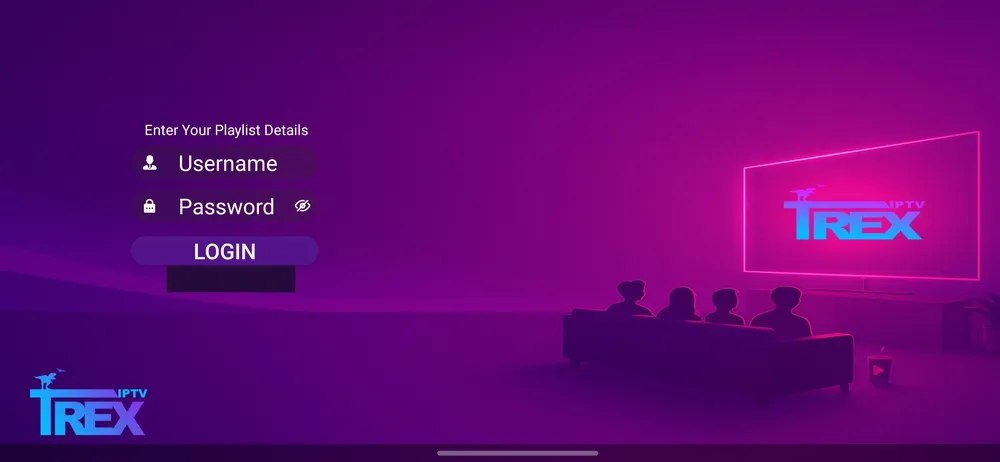
The TREX IBO capture below illustrates the difference. This version labels a screen for playlist details, then asks for a username and password. There is no server-address field in this capture. If your edition opens on this screen and you received only a long playlist address, ask which account method was prepared for you. An unfamiliar word in the heading is a poor reason to split a private link into pieces and guess at the fields.
| What the player requests | What to get from the account provider |
|---|---|
| M3U playlist | The subscription’s private playlist address or file, in the form this version of the player accepts. |
| XC or Xtream login | The issued server address, username and password for that method. Copy each into its named field. |
| Device-linked portal | The operator’s portal address and confirmation that the intended box or app installation is linked. |
| Player licence or activation | The publisher’s explanation of the charge or registration. Check who supplies the separate viewing account. |
Formuler makes the version difference especially visible. MYTVOnline 2 lists connections under Menu. In MYTVOnline 3 the route goes through Content Manager to Content Sources. MYTVOnline 4 puts Content Sources in App Settings under Settings. Formuler documents portal, XC and M3U options. Choose the one your provider issued. When a source already works for another account, give the new one a recognisable name and leave the existing entry available.
Find content sources in MYTVOnline · Read the TREX IBO player guide
Know when the account has opened
Watch what happens immediately after you save the details. The player may return to a list of saved profiles. Select the profile you just created and give it time to open. If you land on an empty or unfamiliar list, read the profile name again. A second account or the player’s demonstration source can survive a new installation or appear beside the one you just added.
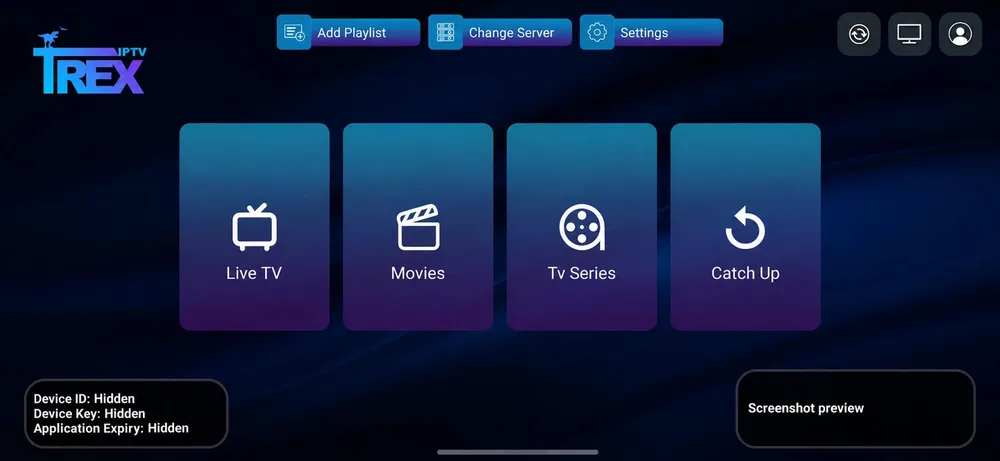
In the redacted IBO home screen below, Add Playlist and Change Server sit above four viewing sections. Live TV is the place to start a live-channel check. Choosing Movies first and finding an empty library would answer a different question. The Device ID, Device Key and Application Expiry fields belong to the software installation. A date next to Application Expiry should be checked against the player licence before using it to calculate the end of a service term.
If sign-in fails, check the exact field at which it failed. Look for a misplaced space when pasting, especially at the end of a username. Compare a server address with the one issued through the account contact, including any port or path the provider supplied. Avoid guessing new spellings of a private address. A brief report that the account was accepted and the live list opened gives support a very different starting point from a message about an immediate sign-in error.
Choose a station you can recognise
For the first picture, choose something you could identify with the menu hidden. A local presenter, a bulletin for your city or a familiar programme with people talking is a good starting point. If you have a particular station in mind, use its full name in the player. If multiple editions appear, check any city, region or language shown beside each result before adding one to favourites.
Go beyond the station logo. Regional services sometimes carry the same national programme for much of an evening. Compare the picture during a local segment and use the broadcaster’s schedule for that edition and date. If your reason for switching players is a particular match, identify the competition, teams and session as well. A studio preview, live fixture and replay can all carry the team names in their programme titles.
Open the channel, wait until both moving pictures and sound are present, then change station and return with the remote. This checks that you can get back to the right edition outside the search result. Save it only after that return works. If the player permits a custom label, adding the city can spare the next viewer a search through several near-identical entries.
A public station directory can help with names and aliases. What an individual account includes needs a check in that account or a reply from the provider. If a channel is the reason for your trial, write its name in the enquiry before activation and test it when that edition has something distinctive on air.
Test a picture you would actually watch
Sit in your usual seat and use the sound output you normally use. Leave the picture settings as they are for the first check. Watch an ordinary passage of dialogue. Can you hear the words at your normal volume? Do lips and speech appear together? If speech is late, try the same material through the TV speakers as well as the soundbar. Keep a note of the selected output so the comparison can be reversed after the test.
For sport, look at a slow camera pan across the field and the scoreboard while the camera is moving. A stationary studio close-up tests something else. If motion looks rough, try a second moving programme on the same player before changing the television’s picture mode. An input information banner may report the resolution the box is sending to the panel. That number alone cannot tell you how the programme was filmed or the resolution of the stream the box received.
If subtitles matter to someone in the room, hand them the remote. Open the audio and subtitle controls while someone is speaking. Read the available language labels and, where offered, the difference between subtitles and captions for sound cues. Turn the selected track off and on, then change programmes. This tells you whether the choice works for the specific title and whether the next programme retains it. Write down the title and selected track if the text disappears, runs late or remains visible after you switch it off.
A blank programme-guide row is a separate observation from a blank picture. If the channel plays, keep it running long enough to identify the programme and compare the neighbouring rows. For a consistent one-hour shift on several stations, note the TV’s time zone and any existing guide offset before changing either. One isolated blank row is a good reason to send the exact station label. It is a poor reason to wipe a working profile.
Investigate one missing guide row · Check a guide that is one hour out
When playback stops, keep one thing the same
The last thing you saw is often the best diagnostic clue. An app that drops out to the TV home screen behaved differently from a player that stays open on a spinning symbol. Before restarting anything, notice whether the remote can still open the player menu, whether audio continues and whether another station opens. If it is a shared room, ask what somebody changed just before the problem appeared.
| What you can reproduce | One comparison to make |
|---|---|
| One station repeatedly stalls | Leave the setup alone, play a second station for a similar interval, then return to the first. Record the station edition and local time. |
| All tested stations stall in this player | Open a different streaming app already working on the same box. Give both results to support. Each app can reach a different service. |
| No sound from the soundbar | Check dialogue through the TV speakers and the soundbar with the same programme. Note whether other television apps also lose sound on that output. |
| The menu opens, then the app exits | Reopen it and note whether the exit follows the same action, such as opening Live TV, choosing a saved profile or selecting one programme. |
| Guide opens at a different day | Read the device clock, local date and time zone. Compare the intended edition’s published schedule, especially across midnight. |
If you compare Wi-Fi and Ethernet, use the same device, player and programme for both runs. It helps to return to the first connection afterwards, particularly if the problem was intermittent. A phone working next to the router is welcome news, but it changes the device, location and sometimes the network all at once. Keep your first check small enough that its result answers one question.
If the phone supplied the picture
A successful cast is a useful option for some homes. It is also easy to mistake it for a player installed on the television. For Google Cast, start with a Cast-enabled app and a compatible receiver on the same Wi-Fi network. Select the receiver by its room or device name. If there are two screens with similar names, check which screen actually changes before typing anything into the phone.
Try the interruption that normally happens in your home. Can the viewer switch to the next programme using the controls they have? Can they end the session and reopen the same content? When the guest who cast from their phone leaves, can the person who stays start a new session? Note which step requires the original phone. A household that depends on a single shared remote may prefer a player that opens directly from TV Home.
If the objective was a native installation, end the cast and try opening the player on the receiving device using its own Home screen. If you used a compatible mobile app throughout, describe the result that way when contacting support. The phone’s player name and the receiver’s exact model give the publisher the necessary details for a casting question.
Leave the next viewer a way back
Turn the television off in the ordinary way. Later, ask the person who uses it most to find the same station from a cold start or from standby, whichever is normal in your home. Watch which button they reach for. HDMI labels can mean more than the names of the devices plugged into them, and two apps can have almost the same icon. A note that says “HDMI 2, Apple TV Home, blue player icon, Favourites” is easier to follow than the name of an app alone.
Keep a short record of what worked. Include the device model, operating system, player and profile label. Write the input beside the channel or programme used for the check. Keep the actual credentials in your private account records. A handover note beside the remote only needs the path to the picture. If this was a replacement box, check with the provider whether any device registration has to move, and close the old viewing session before opening a second one under a single-connection allowance.
For a WhatsApp enquiry, one message can give support enough to take the next step. For example, “My 2023 Fire TV Stick 4K runs Fire OS 8. The player opens and I can see the live list. The local news edition showed a black picture at 7.10 pm London time. A second station played with sound on the same setup.” Add the date, actual station and player name. If a screenshot will help, crop it to the error and cover private addresses, usernames and device identifiers.
A successful first evening leaves you with one repeatable action. You can pick up the usual remote, reach the programme you came to see, hear it clearly and find it again after changing channels. If you want to assess a longer subscription, repeat that familiar routine at the time the household normally watches.
Arrange the 24-hour trial · Reach TREX support on WhatsApp · Plan the rest of your trial
Samsung · install and reopen apps on a TVLG · check apps against country, model and webOSGoogle · install apps on Google TVGoogle · built-in Google TV in basic modeApple · identify an Apple TV by its model numberApple · App Store availability on Apple TVAmazon · identify Fire TV devicesAmazon · Fire TV Stick 4K, third generationFormuler · portals, XC accounts and M3U sourcesGoogle · cast from a supported app