
Check an LG player against the TV model and service country
LG lets you look up an app against a country and TV model. Use that lookup when a player appears on another LG screen but is missing from yours.
Start with a model-specific listing
Write down the full model code and webOS version. In LG’s online TV-app search, select the country, enter the model, then search the player’s name. Read the minimum or supported webOS version on the listing. Two televisions bought a year apart can appear in different results even with the same store country.
If the result matches your model, return to the television and open its Apps area or Content Store. Search again. Seeing a listing online settles the model question. Whether it downloads on this particular television also depends on the account, network, storage and service-country setting.
Find the location setting for your webOS generation
| LG’s documented TV generation | Path after All Settings |
|---|---|
| webOS 26, 2026 or later | System → Location |
| webOS 6.0–25, 2021–2025 | General → System → Location |
| webOS 5.0 and earlier | General → Location |
Check that LG Services Country matches where you use the set. A television purchased abroad can still have a different catalogue from a locally supplied model. If the listing remains absent, give support the model, webOS version, actual country and exact player name. That identifies the store question before anyone changes your working television accounts.
An imported LG set and its local store
The picture panel and remote can match a neighbouring set even when their store catalogues differ. LG’s own lookup takes both model and country, which is why a search by brand alone can give the wrong answer. Check the catalogue using the full model code and actual service country, then compare with Apps on the TV. If the model appears abroad under another suffix, keep the two model entries separate while taking notes.
A successful public listing for a different country cannot settle availability on the set in front of you. A matching listing followed by a failed installation shifts the focus to the exact on-screen message and system information. An existing LG app with a working setup deserves to stay in place while a new player’s availability is checked.
Put the result in context
For this LG webOS question, start with the controls shown on your own device. LG’s online app lookup accepts the television model and the service country. Write down both, with the webOS version shown on the television. The design of a Magic Remote or a description such as OLED alone cannot identify the supported store catalogue. Which webOS release, model suffix and LG Services Country did your search use? Write down the answer alongside the player title. The on-device result distinguishes a local setup issue from something you have only seen in a product image or a guide for a different generation.
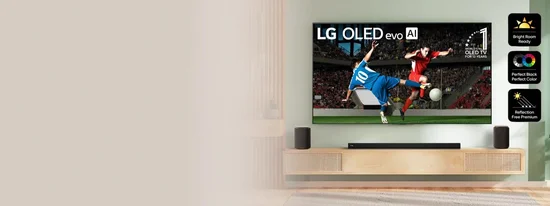
A hardware example is LG OLED TV living-room product graphic. This LG room image shows a television in context. Its panel shape and stand leave the software generation unresolved. LG’s application lookup asks for the model and service country, both of which matter when finding a local player. In the case described here, the most informative observation is what happens immediately after the action you are testing. Keep the same device and input while reproducing it, so the publisher can recognize which part of the sequence changed.
Preparing a reply the right person can use
Ask “Which webOS release, model suffix and LG Services Country did your search use?” and include the system release and country with the actual response. Check the service country and webOS support against the publisher listing before buying a separate player licence. If a support agent asks you to describe the account screen, name its visible fields and the button you selected. Those labels communicate the workflow without disclosing the contents of a private account.
Before repeating the test, keep one point of comparison from LG webOS. The living-room set and bedroom set can both say LG OLED but run several generations of webOS apart. Search each model separately and keep whichever result belongs to the television in use. Compare the same action under the original conditions first. If a second screen behaves differently, identify that device separately, say what it showed and note whether it used the same account and distribution source.
Questions and answers
Where can I check whether LG lists a player for my specific TV?
Use LG’s online TV-app search with the country and full TV model, then check the supported webOS version and compare the listing with the TV’s own store.