“Plan a shared TV setup” is filed here under Plan a shared TV setup. The purpose of this particular card is captured in its caption: Write down who uses the shared TV, the preferred language and how you will organise the remote. Read the subject page if you need the account rule or actual steps behind the illustration.
The larger illustration and the phone edition of Plan a shared TV setup are paired with TREX IPTV plans, apps and a 24-hour trial.. That page opens with a practical answer: Watch live TV, films and series with a compatible TREX player. When selecting a plan or asking about an installation, use that HTML guide to carry the full details into your enquiry.
“Find the exact match” is filed here under Find the exact match. The purpose of this particular card is captured in its caption: Use the full competition name and match date when requesting a sports feed. Read the subject page if you need the account rule or actual steps behind the illustration.
The larger illustration and the phone edition of Find the exact match are paired with TREX IPTV plans, apps and a 24-hour trial.. That page opens with a practical answer: Watch live TV, films and series with a compatible TREX player. When selecting a plan or asking about an installation, use that HTML guide to carry the full details into your enquiry.
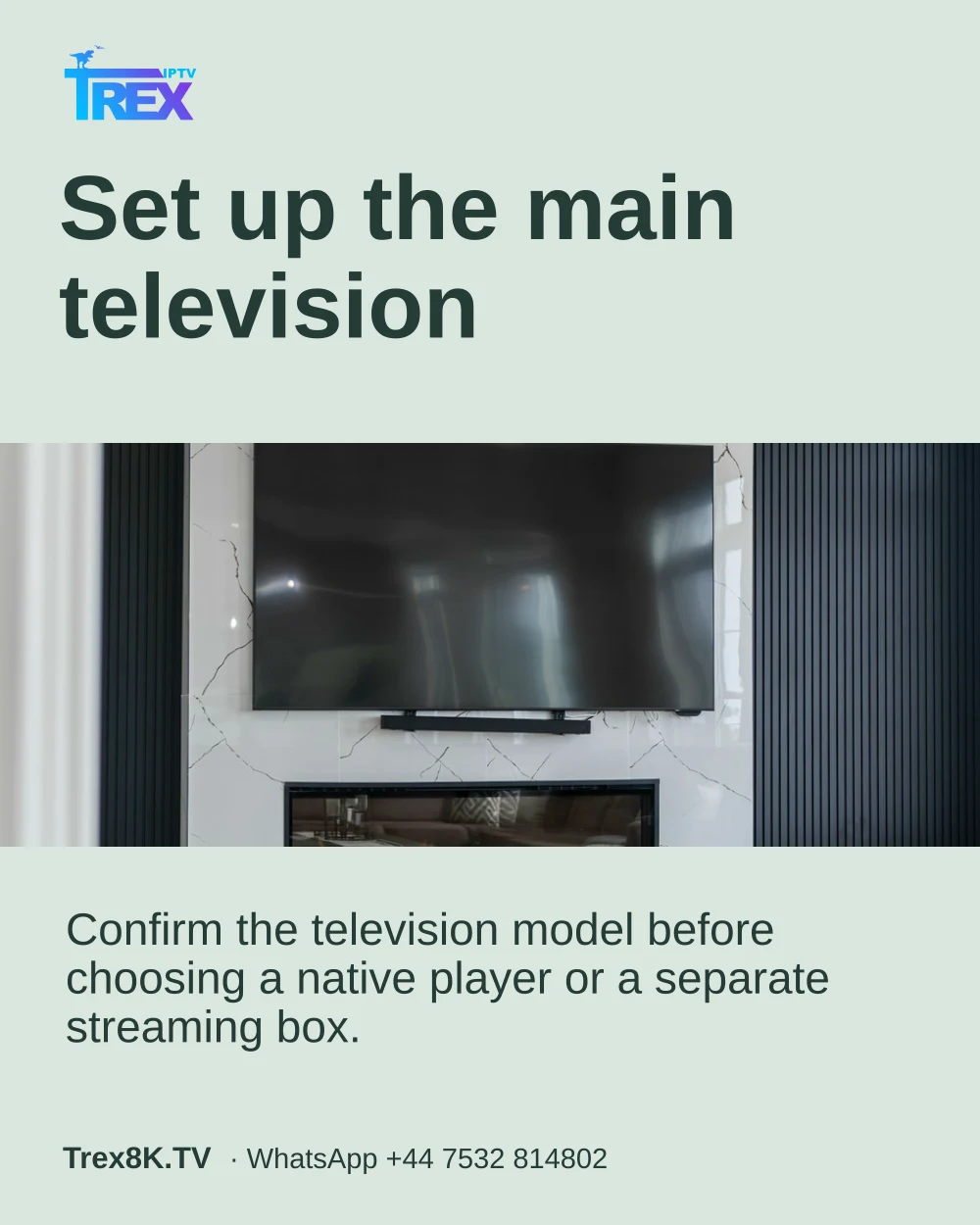
“Set up the main television” is filed here under Set up the main television. The purpose of this particular card is captured in its caption: Confirm the television model before choosing a native player or a separate streaming box. Read the subject page if you need the account rule or actual steps behind the illustration.
The larger illustration and the phone edition of Set up the main television are paired with TREX IPTV plans, apps and a 24-hour trial.. That page opens with a practical answer: Watch live TV, films and series with a compatible TREX player. When selecting a plan or asking about an installation, use that HTML guide to carry the full details into your enquiry.
“Find your next series” is filed here under Find your next series. The purpose of this particular card is captured in its caption: Use the series title and season to check the release and the audio you want. Read the subject page if you need the account rule or actual steps behind the illustration.
The larger illustration and the phone edition of Find your next series are paired with TREX IPTV plans, apps and a 24-hour trial.. That page opens with a practical answer: Watch live TV, films and series with a compatible TREX player. When selecting a plan or asking about an installation, use that HTML guide to carry the full details into your enquiry.
“Explore player features” is filed here under Explore player features. The purpose of this particular card is captured in its caption: Pick the settings you actually use and check them in your exact player. Read the subject page if you need the account rule or actual steps behind the illustration.
The larger illustration and the phone edition of Explore player features are paired with TREX IPTV plans, apps and a 24-hour trial.. That page opens with a practical answer: Watch live TV, films and series with a compatible TREX player. When selecting a plan or asking about an installation, use that HTML guide to carry the full details into your enquiry.
“Prepare for match day” is filed here under Prepare for match day. The purpose of this particular card is captured in its caption: Check the right feed, kickoff time and player before the first fixture you want to watch. Read the subject page if you need the account rule or actual steps behind the illustration.
The larger illustration and the phone edition of Prepare for match day are paired with TREX IPTV plans, apps and a 24-hour trial.. That page opens with a practical answer: Watch live TV, films and series with a compatible TREX player. When selecting a plan or asking about an installation, use that HTML guide to carry the full details into your enquiry.
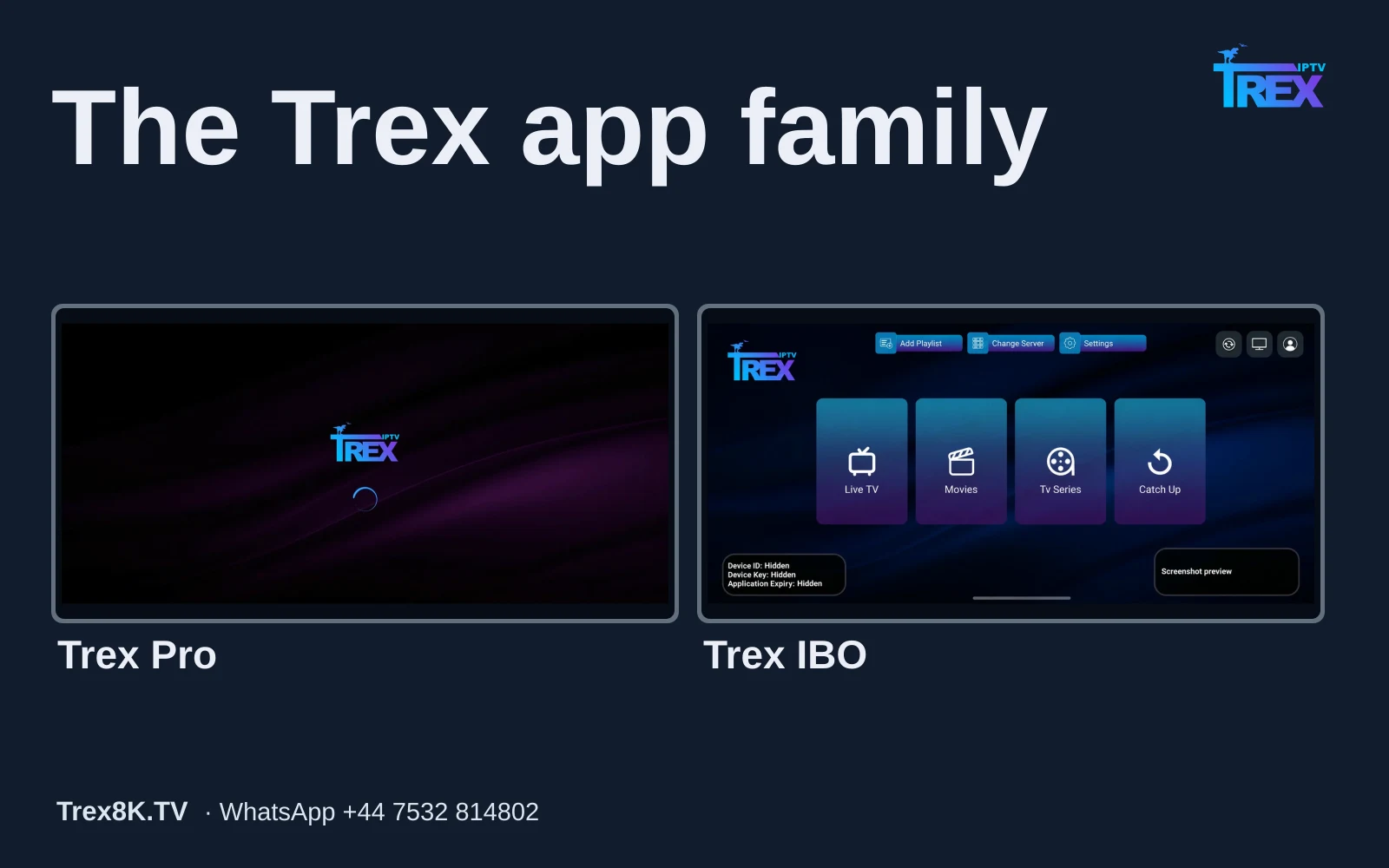
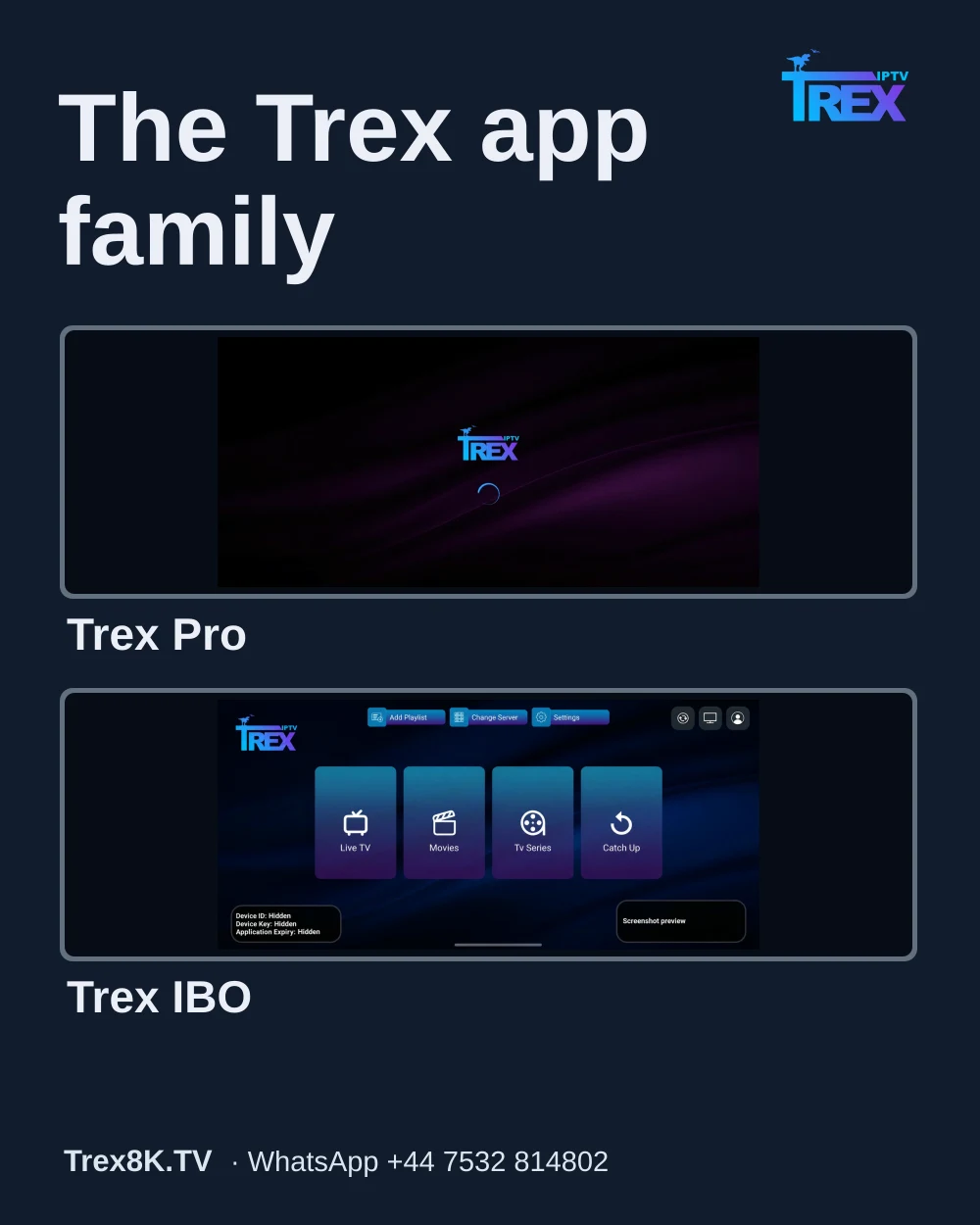
“The Trex app family” is filed here under The Trex app family. The purpose of this particular card is captured in its caption: Compare the genuine Trex Pro and Trex IBO interfaces before installation. Read the subject page if you need the account rule or actual steps behind the illustration.
The larger illustration and the phone edition of The Trex app family are paired with TREX IPTV plans, apps and a 24-hour trial.. That page opens with a practical answer: Watch live TV, films and series with a compatible TREX player. When selecting a plan or asking about an installation, use that HTML guide to carry the full details into your enquiry.
“A separate space for sport” is filed here under A separate space for sport. The purpose of this particular card is captured in its caption: Write down the event, broadcaster and regional edition; access is confirmed separately. Read the subject page if you need the account rule or actual steps behind the illustration.
The larger illustration and the phone edition of A separate space for sport are paired with TREX IPTV plans, apps and a 24-hour trial.. That page opens with a practical answer: Watch live TV, films and series with a compatible TREX player. When selecting a plan or asking about an installation, use that HTML guide to carry the full details into your enquiry.
Use the entries above to move between Plan a shared TV setup and A separate space for sport. Each linked guide retains the full record, its source and any conditions that affect how to use it.