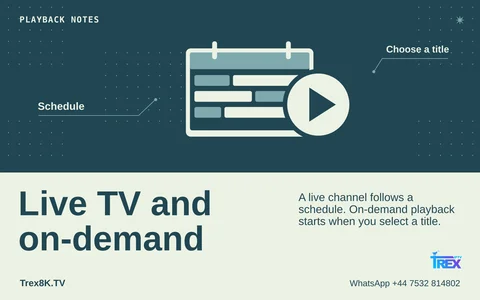
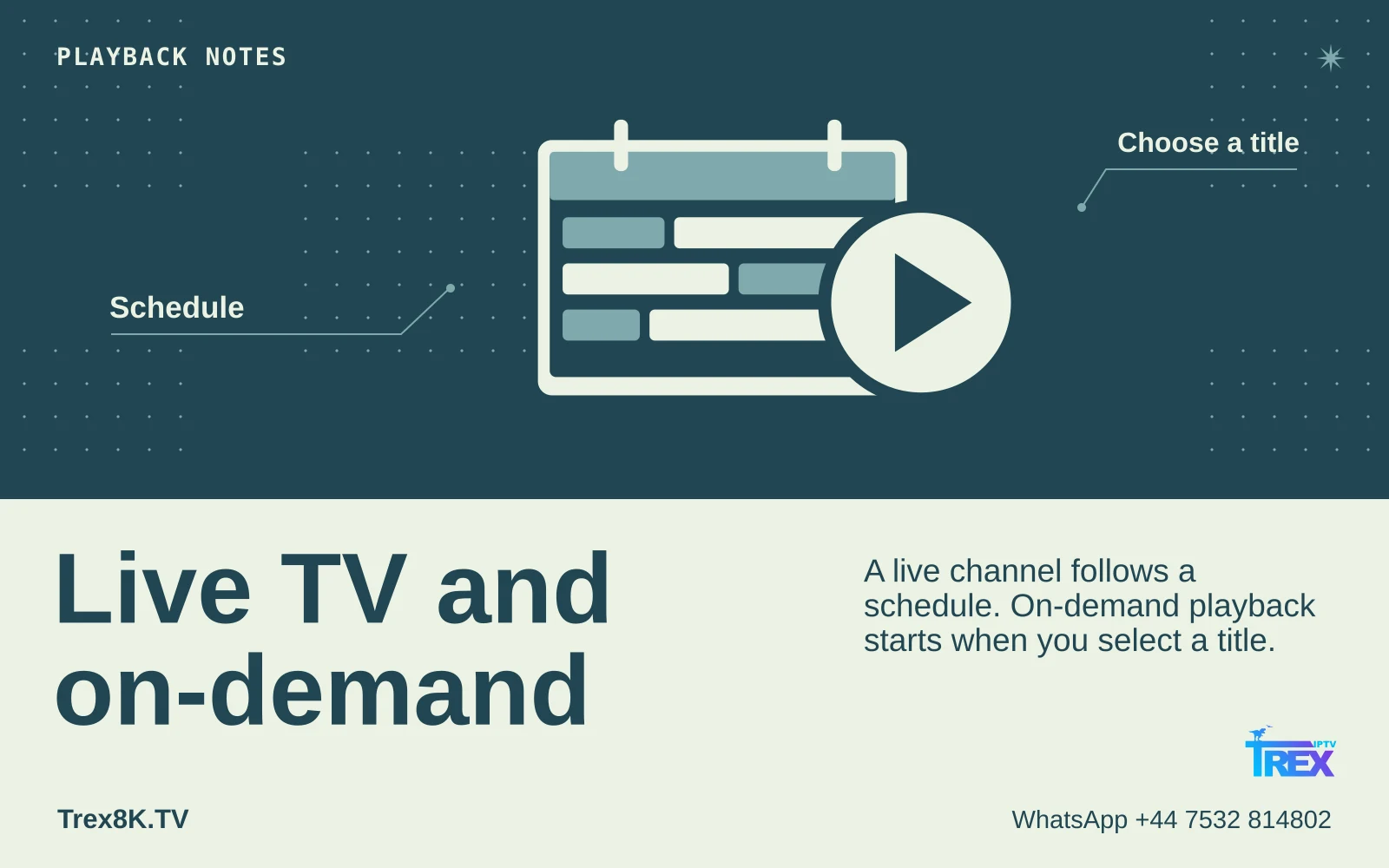
“Live TV and on-demand” is filed here under Live TV and on-demand. The purpose of this particular card is captured in its caption: A live channel follows a schedule. Read the subject page if you need the account rule or actual steps behind the illustration.
The larger illustration and the phone edition of Live TV and on-demand are paired with Playback features explained. That page opens with a practical answer: Read the difference between a live guide, a catch-up window and a player setting before deciding what you need. When selecting a plan or asking about an installation, use that HTML guide to carry the full details into your enquiry.
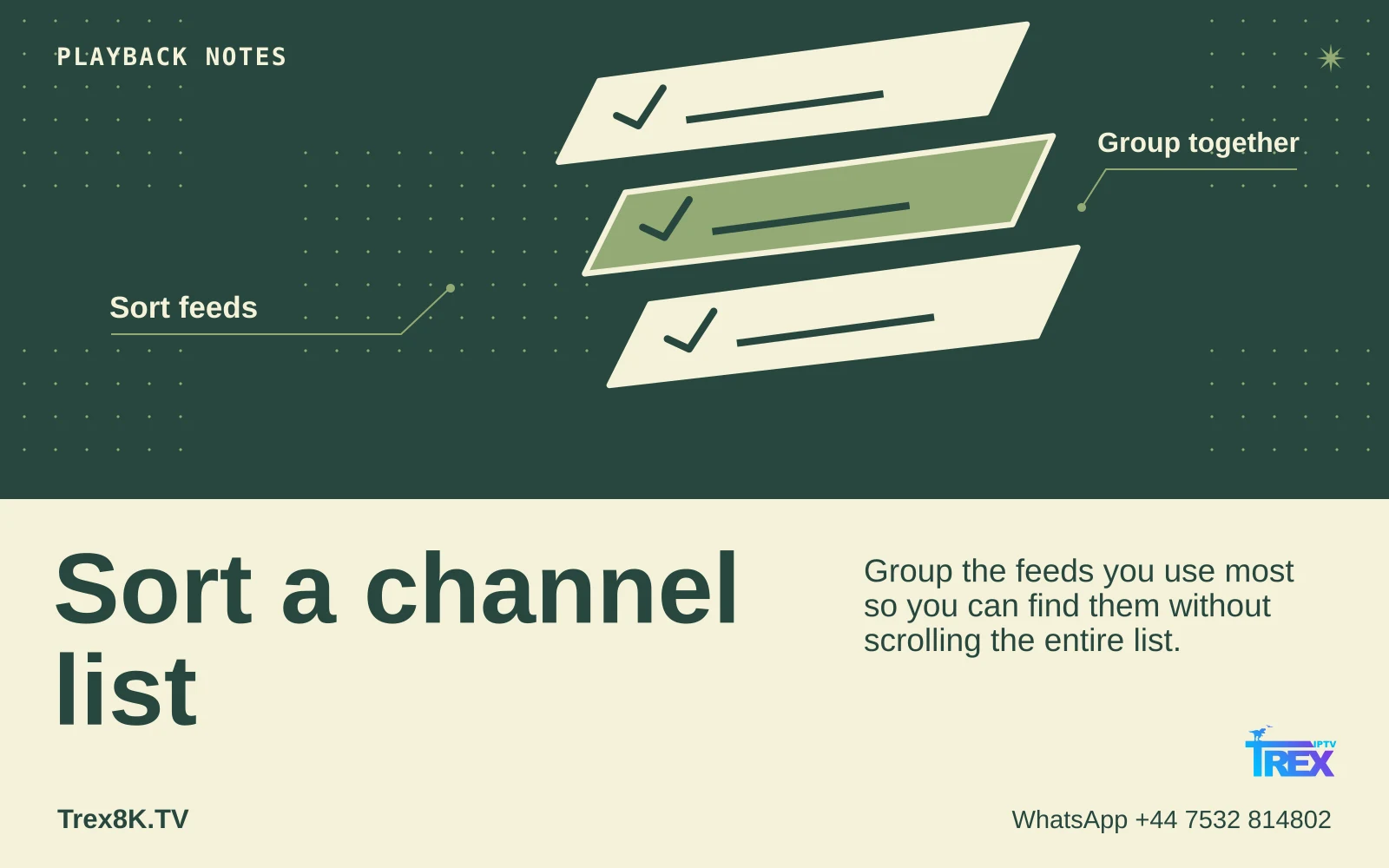
“Sort a channel list” is filed here under Sort a channel list. The purpose of this particular card is captured in its caption: Group the feeds you use most so you can find them without scrolling the entire list. Read the subject page if you need the account rule or actual steps behind the illustration.
The larger illustration and the phone edition of Sort a channel list are paired with Playback features explained. That page opens with a practical answer: Read the difference between a live guide, a catch-up window and a player setting before deciding what you need. When selecting a plan or asking about an installation, use that HTML guide to carry the full details into your enquiry.
“Find a channel by its feed name” is filed here under Find a channel by its feed name. The purpose of this particular card is captured in its caption: Search using the full channel name, language and regional suffix if it has one. Read the subject page if you need the account rule or actual steps behind the illustration.
The larger illustration and the phone edition of Find a channel by its feed name are paired with Playback features explained. That page opens with a practical answer: Read the difference between a live guide, a catch-up window and a player setting before deciding what you need. When selecting a plan or asking about an installation, use that HTML guide to carry the full details into your enquiry.
“Change the subtitle size” is filed here under Change the subtitle size. The purpose of this particular card is captured in its caption: Use the player's subtitle style controls where available and test them from your usual seat. Read the subject page if you need the account rule or actual steps behind the illustration.
The larger illustration and the phone edition of Change the subtitle size are paired with Playback features explained. That page opens with a practical answer: Read the difference between a live guide, a catch-up window and a player setting before deciding what you need. When selecting a plan or asking about an installation, use that HTML guide to carry the full details into your enquiry.
“Know what catch-up covers” is filed here under Know what catch-up covers. The purpose of this particular card is captured in its caption: Check the particular channel, programme and replay window your player exposes. Read the subject page if you need the account rule or actual steps behind the illustration.
The larger illustration and the phone edition of Know what catch-up covers are paired with Playback features explained. That page opens with a practical answer: Read the difference between a live guide, a catch-up window and a player setting before deciding what you need. When selecting a plan or asking about an installation, use that HTML guide to carry the full details into your enquiry.
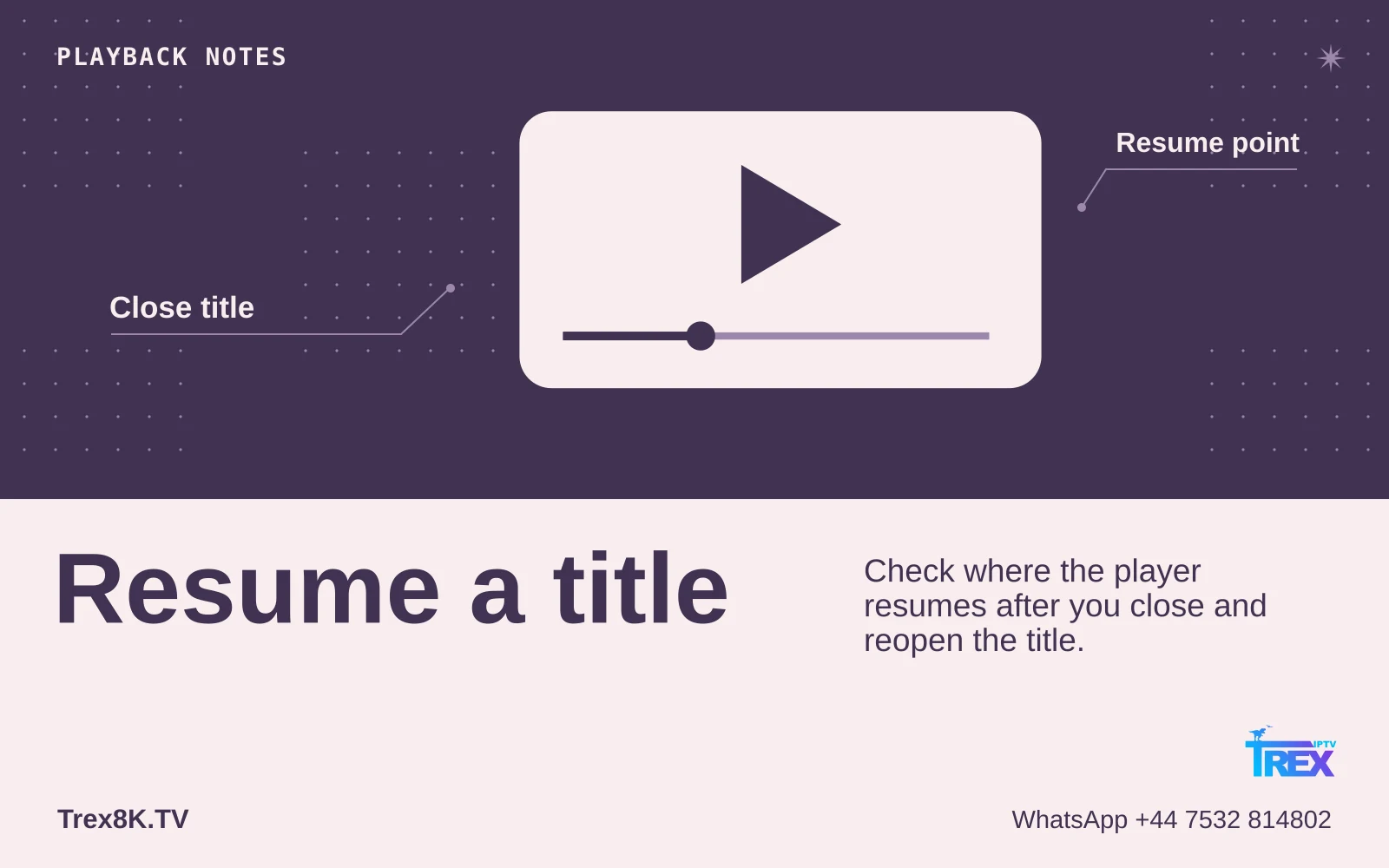
“Resume a title” is filed here under Resume a title. The purpose of this particular card is captured in its caption: Check where the player resumes after you close and reopen the title. Read the subject page if you need the account rule or actual steps behind the illustration.
The larger illustration and the phone edition of Resume a title are paired with Playback features explained. That page opens with a practical answer: Read the difference between a live guide, a catch-up window and a player setting before deciding what you need. When selecting a plan or asking about an installation, use that HTML guide to carry the full details into your enquiry.
“What an HD label means” is filed here under What an HD label means. The purpose of this particular card is captured in its caption: Use the actual stream details and picture to check the delivered resolution. Read the subject page if you need the account rule or actual steps behind the illustration.
The larger illustration and the phone edition of What an HD label means are paired with Playback features explained. That page opens with a practical answer: Read the difference between a live guide, a catch-up window and a player setting before deciding what you need. When selecting a plan or asking about an installation, use that HTML guide to carry the full details into your enquiry.
“8K readiness questions” is filed here under 8K readiness questions. The purpose of this particular card is captured in its caption: An 8K display can show lower-resolution sources. Read the subject page if you need the account rule or actual steps behind the illustration.
The larger illustration and the phone edition of 8K readiness questions are paired with Playback features explained. That page opens with a practical answer: Read the difference between a live guide, a catch-up window and a player setting before deciding what you need. When selecting a plan or asking about an installation, use that HTML guide to carry the full details into your enquiry.
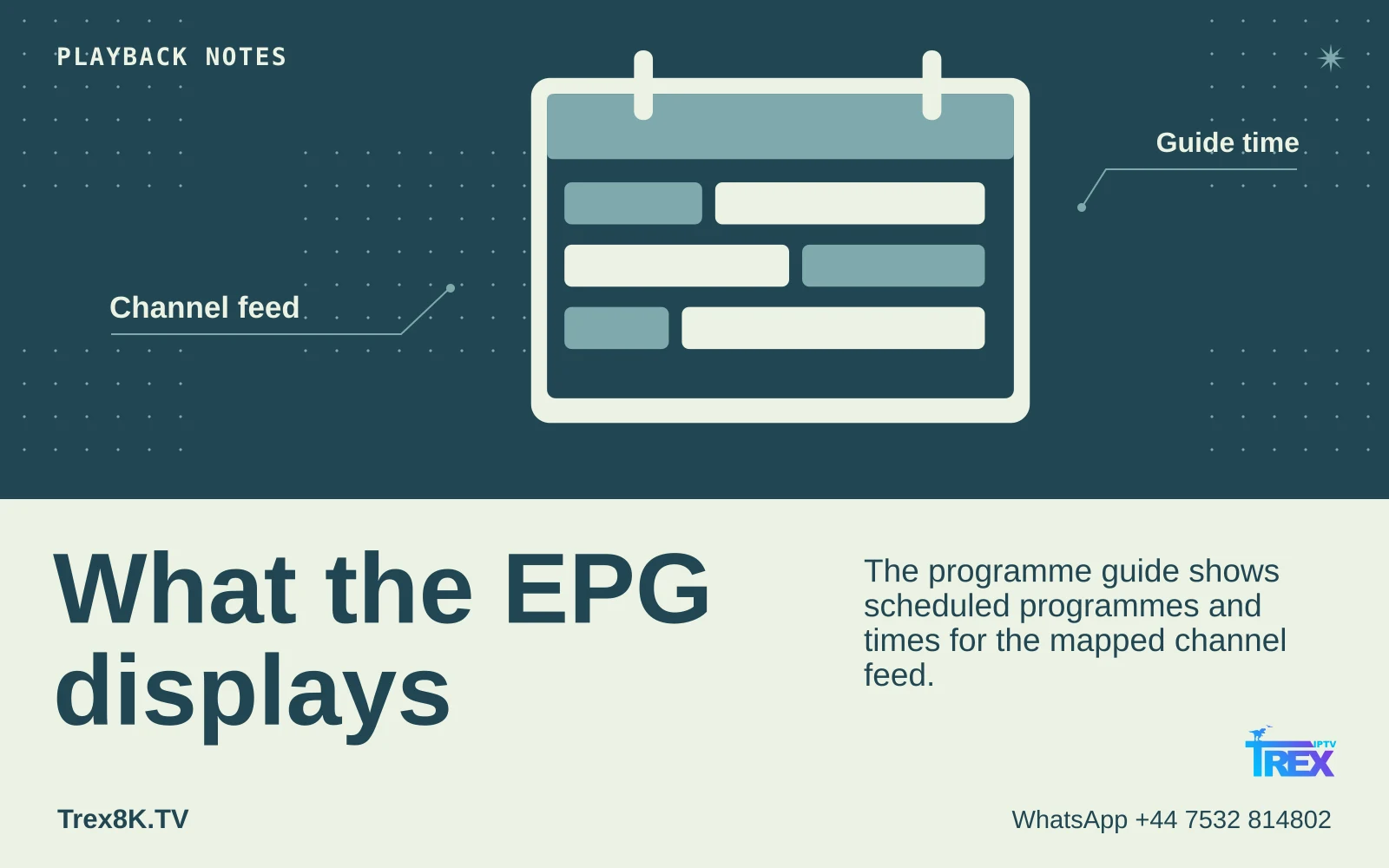
Use the entries above to move between Live TV and on-demand and 8K readiness questions. Each linked guide retains the full record, its source and any conditions that affect how to use it.